By Greg Nowak. Last updated 2026-09-17.
A scheduled post misses its slot. A subscription renewal stays pending. An import that should have started at noon finally wakes up hours later.
Installing another cron or queue-management plugin is an understandable reaction. It also changes the system before you know what failed. WordPress background work depends on two things: a runner must trigger the job, and a worker must have enough time and resources to finish it. Delays can begin on either side.
The cause might be uneven traffic, a failed loopback request, an overloaded queue, a slow callback, or web-request limits that no longer suit the workload. The useful first step is to locate the delay.
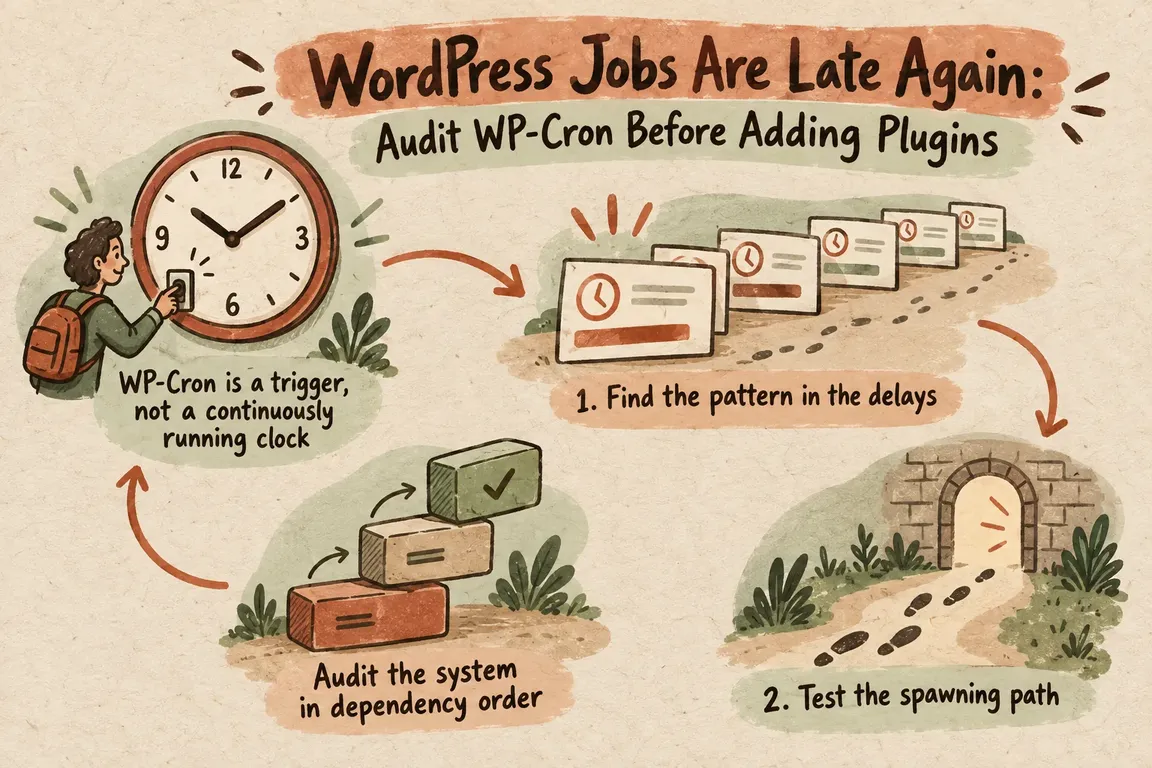
WP-Cron is a trigger, not a continuously running clock
WP-Cron does not run continuously. WordPress checks for due work when the site receives a request. On a quiet or unevenly visited site, a task scheduled for a specific time may simply wait for the next visit.
That behaviour is built into the design. The WordPress handbook recommends using the operating system’s task scheduler when critical jobs must start on time. Low traffic, by itself, does not show that a scheduling plugin is broken.
The current wp_cron() implementation registers its callback on WordPress’s shutdown action unless alternate cron is enabled. This allows the loopback request to begin after the HTML response has been flushed, reducing its effect on time to first byte. It improves request performance, but WP-Cron still depends on traffic unless another scheduler calls it.
So begin with a narrow question: did the runner start when expected? Once you know that, you can look at what happened inside the job.
Audit the system in dependency order
1. Find the pattern in the delays
Inventory the scheduled hooks and Action Scheduler actions. Note which hooks are overdue, the age of the oldest pending action, whether failures collect around one hook or group, and whether the backlog is growing faster than it clears. Compare delayed work with jobs that still complete normally.
If several unrelated jobs wait at the same time, the shared runner or its resources deserve attention. If one family of actions repeatedly fails while everything else moves, focus on that callback, its dependencies, and the amount of work it performs.
2. Test the spawning path
From the relevant WordPress installation, run wp cron test. The WP-CLI command reference says this test checks whether DISABLE_WP_CRON is enabled, warns when ALTERNATE_WP_CRON is enabled, and attempts to spawn WP-Cron over HTTP. It also reports a warning when the request receives a response other than HTTP 200.
A failed test gives you a useful boundary: investigate configuration and loopback HTTP behaviour before tuning the jobs themselves. A successful result only confirms that spawning worked at that moment. It does not show that every callback is healthy, fast, or adequately resourced.
| What you observe | Where to look | Practical next step |
|---|---|---|
wp cron test fails |
Configuration, alternate cron, or the loopback response | Repair the trigger path before tuning jobs |
| Spawning works, but one hook keeps failing | The callback and its dependencies | Fix the handler before changing global concurrency |
| Spawning works, but many actions remain pending | Queue throughput, execution time, and memory | Measure capacity and assess a CLI runner |
| Jobs run after visits but miss predictable times | Traffic-dependent scheduling | Use a server scheduler for reliable starts |
3. Separate failed work from slow work
A failed action and a slow queue need different responses. Repeated failures point to the affected handler. A queue whose actions succeed but fall progressively further behind needs more dependable triggering, better execution conditions, or a measured increase in throughput.
This distinction matters on a live site. Raising limits because one callback is failing can add load without fixing the callback. Replacing the scheduler when the queue lacks processing capacity adds another component while leaving the original bottleneck in place.
Use the server scheduler for time-sensitive work
If jobs need predictable start times, schedule WP-Cron through the operating system at an interval that matches the business requirement. WordPress’s guide to hooking WP-Cron into the system task scheduler describes making a scheduled request to wp-cron.php. After the external schedule is working, the guide advises disabling page-load invocation with DISABLE_WP_CRON to avoid redundant triggers and resource use.
Sequence matters here. Configure the external trigger, verify that it works, and only then disable the default path. Test it under the same hosting, DNS, TLS, and application conditions used in production. A reliable server trigger creates a dependable opportunity to run. An unhealthy callback can still fail once it starts.
When queues grow, consider Action Scheduler’s CLI runner
Action Scheduler provides a traceable queue, although its default runner still works within the limits of a web request. Its WP-CLI documentation recommends command-line processing for long-running work, large queues, and sites where several plugins compete for WP-Cron resources. CLI execution generally avoids the script timeouts and other restrictions applied to normal web requests.
The CLI runner can target specific hooks or groups and exclude others, which is helpful for controlled tests. You can also set the batch size and number of batches. Treat --force with care: it overrides Action Scheduler’s normal concurrency protection and is not a routine speed control.
If you disable the default queue runner in favour of CLI-only processing, the CLI schedule becomes essential infrastructure. Action Scheduler warns that scheduled actions will stop processing if neither WP-CLI nor another runner is available. Put that dependency in deployment documentation and monitoring so it does not disappear as forgotten setup knowledge.
Tune throughput from measurements
Action Scheduler’s background-processing guidance documents the conservative limits used by the default web runner. Processing stops when memory usage reaches 90 percent of the available memory. It also stops when the recent average suggests that three more actions would push the total request time beyond 30 seconds. By default, a web batch claims 25 actions and runs one concurrent batch.
Each available control addresses a different constraint. A longer time limit can help when the host allows longer requests. A larger batch can reduce claiming overhead when individual actions are fast. Additional concurrent batches improve throughput only when the server has enough connections and worker capacity to support them.
Concurrency carries the greatest operational risk. Action Scheduler warns that increasing concurrent asynchronous runners can sharply raise server load and take down the site. Change one variable at a time. Watch queue age, completion rate, memory use, request latency, and failures, and keep a tested rollback path. For genuinely large queues, the guidance favours WP-CLI over aggressive web-runner concurrency.
Make lateness visible before it becomes urgent
A dependable setup needs monitoring as well as a runner. Track the number of pending actions, the age of the oldest due action, recurring failures by hook or group, and whether the queue drains between workload peaks. Set thresholds according to business impact; a publishing delay and a payment-related delay rarely carry the same urgency.
This is the kind of audit Greg can run without turning it into a plugin-shopping exercise: inventory the hooks, inspect overdue actions, test loopback spawning, isolate slow or failing handlers, establish server-side scheduling, and tune Action Scheduler cautiously. The result should be a clear diagnosis, a workable operating setup, and alerts that show when the queue starts slipping again.
Related on GrN.dk
- Background AI Tasks Need Queues—not Just Longer API Calls
- Before You Buy a GPU: Test Your Team’s Local AI Workload
- WordPress 7.1 Adds a Performance Lever Your Host May Already Use
Need help with this kind of work?
Get help auditing scheduled WordPress jobs Get in touch with Greg.