By Greg Nowak. Updated 7 August 2026.
WordPress custom fields turn information buried in page copy into data your team can reliably edit, display, filter, and send to other systems. A client sector, event date, campaign owner, product specification, download URL, or “featured” flag becomes a named value instead of another detail someone must remember to format correctly.
The technology is straightforward. The important work is deciding what deserves structure and choosing the right WordPress feature for it. That decision affects the editing experience, search and filtering, integrations, reporting, and the cost of your next redesign.
Start with the business use, not the field plugin
Before adding fields, write down where each value comes from, who maintains it, and where it will be used. If a value is repeated, validated, filtered, reused in several templates, or consumed by an API, it is a strong candidate for structured storage.
Do not create a custom field merely because a template has an empty space. A field should have a stable meaning. “Event start time” is useful; “small text under the blue box” describes a design that may disappear next year.
| Content need | Usually the best fit | Practical reason |
|---|---|---|
| One or two simple values maintained by technical editors | Native custom fields | No extra plugin, but little guidance or validation |
| A controlled editing form for a broader team | ACF or a comparable field plugin | Clear labels, input types, instructions, and location rules reduce mistakes |
| Recurring records with their own archive, template, or workflow | Custom post type plus fields | Keeps events, vacancies, locations, or case studies separate from ordinary pages |
| Values used for navigation, grouping, and shared filters | Taxonomy | Better suited to managed terms such as sectors, regions, and resource types |
| Unclear or inconsistent information across many pages | Content-model review first | Prevents the database from becoming a collection of unrelated meta keys |
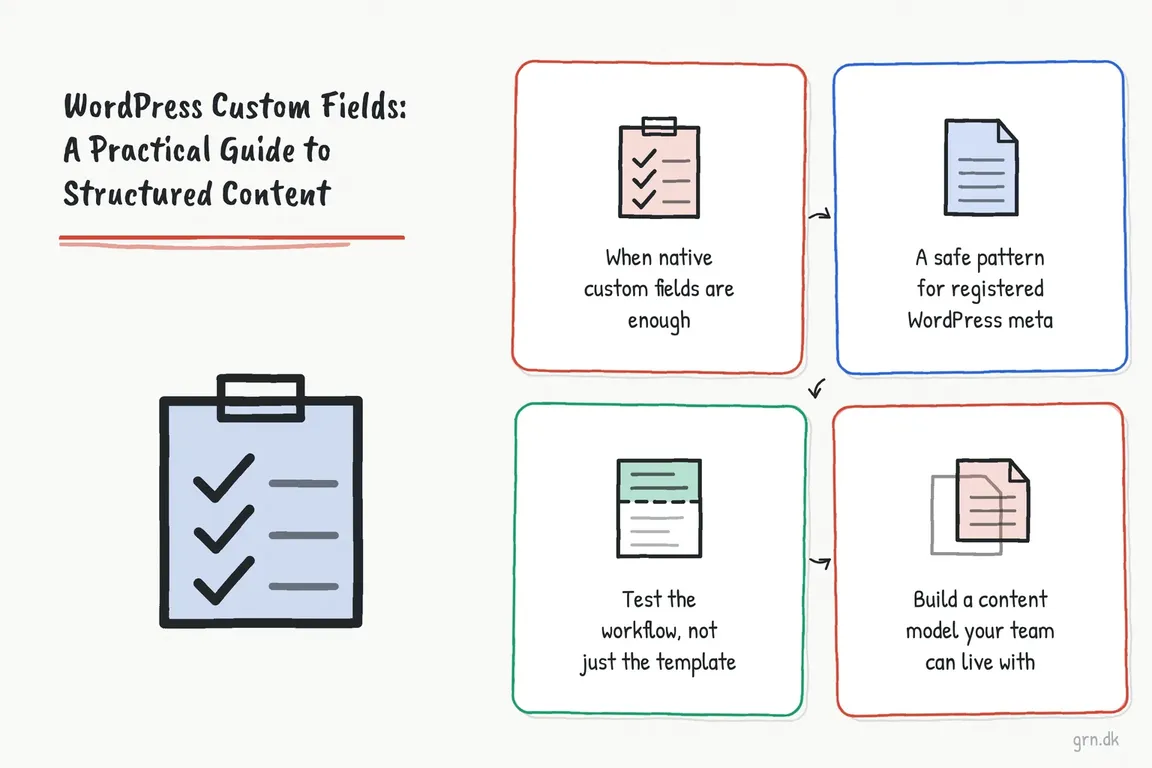
When native custom fields are enough
Core WordPress custom fields remain useful for prototypes, internal tools, and small sites where editors understand the field names. In the Block Editor, the panel is hidden when it has not been used. Save the post, open the three-dot Options menu, choose Preferences, then enable Custom fields under General and Advanced. WordPress reloads the editor after the change.
The weakness is operational rather than technical. Native fields provide a key and a value, but no friendly field grouping, date picker, controlled vocabulary, or much protection against inconsistent input. If several people publish content, a field interface normally pays for itself through fewer corrections and clearer handovers.
When ACF or a custom post type is the better choice
Advanced Custom Fields is useful when editors need purpose-built controls. A field group can contain labels, instructions, field types, presentation settings, and location rules that determine where it appears. Its REST visibility is a separate field-group setting and is off by default, so API requirements should be agreed rather than assumed.
A custom post type is appropriate when the content has its own identity and lifecycle. Vacancies may expire, events may need date-based archives, and locations may feed maps or opening-hours listings. WordPress recommends registering these post types in a plugin instead of a theme, keeping the content available when the visual design changes.
For agency and multi-environment work, field definitions also need a deployment process. Keep programmatic definitions in version-controlled code, or use ACF Local JSON and decide who may change and synchronize fields. Otherwise staging and production can quietly acquire different content models.
A safe pattern for registered WordPress meta
Developer-built fields should be registered explicitly. Registration documents the expected type, supplies sanitization, limits the field to the intended post type, and can expose it through the REST API when an integration genuinely needs it. Put structural code like this in a site-specific plugin:
add_action( 'init', 'grn_register_case_study_content' );

function grn_register_case_study_content() {
    register_post_type(
        'grn_case_study',
        array(
            'label'        => 'Case Studies',
            'public'       => true,
            'show_in_rest' => true,
            'supports'     => array(
                'title', 'editor', 'thumbnail',
                'revisions', 'custom-fields'
            ),
        )
    );

    register_post_meta(
        'grn_case_study',
        'client_sector',
        array(
            'type'              => 'string',
            'description'       => 'Sector displayed on the case study.',
            'single'            => true,
            'show_in_rest'      => true,
            'sanitize_callback' => 'sanitize_text_field',
        )
    );
}
The custom-fields support declaration matters: WordPress requires it before registered meta for a custom post type will appear through REST. For array or object values, show_in_rest needs a schema describing the allowed structure. API writes remain subject to WordPress permissions, but REST-visible values should still be treated as public data. Keep confidential operational values out of public responses and add deliberate capability rules where access must be restricted.
Sanitizing storage is only half the job. Escape the value for its output context when rendering it:
$sector = get_post_meta( get_the_ID(), 'client_sector', true );

if ( '' !== $sector ) {
    echo '<p class="case-study-sector">'
        . esc_html( $sector )
        . '</p>';
}
Test the workflow, not just the template
A sound implementation should survive more than a front-end screenshot. Test creating and revising a record, leaving optional values empty, changing a taxonomy term, querying the REST endpoint, restricting an editor’s permissions, and deploying the field definitions to another environment. Document field names that integrations depend on; renaming a visible label is harmless, but changing a stored key can break templates and data consumers.
Common mistakes that create expensive clean-up
- Adding ad hoc meta keys before defining the underlying content type.
- Using free text for values that need consistent filtering or reporting.
- Registering durable content structures inside a replaceable theme.
- Exposing every field through REST without reviewing its audience.
- Letting production-only admin changes drift away from version-controlled definitions.
- Naming fields after the current layout instead of their business meaning.
Build a content model your team can live with
Custom fields are not an outdated WordPress feature. Used deliberately, they make publishing faster and content more reusable. Used as a drawer for miscellaneous values, they create dependencies nobody understands.
If recurring content is becoming difficult to publish, report on, or connect to other systems, map the model before commissioning more templates. Greg can help turn those requirements into a maintainable WordPress setup that works for editors, developers, and the next agency taking responsibility for it.
Related on GrN.dk
- Cloudflare Page Rules Debt: How Quiet Configuration Drift Breaks Business Websites
- AI automations need a spend dashboard before the first runaway bill
- CMS Upgrades in 2026: Choosing PHP for WordPress and Drupal
Need help with this kind of work?
Discuss your WordPress content model with Greg Get in touch with Greg.