By Greg Nowak. Updated 7 August 2026.
When WordPress says Updating failed. The response is not a valid JSON response., the editor is rarely telling you the whole story. It expected structured data from the WordPress REST API but received something else—perhaps a redirect, login page, firewall challenge, PHP warning, or server error.
The sensible business response is not to try every fix from a search result. Protect the unsaved content, capture the failed request, and identify which layer changed the response. That gets publishing restored with less disruption and avoids “fixes” that quietly weaken security.
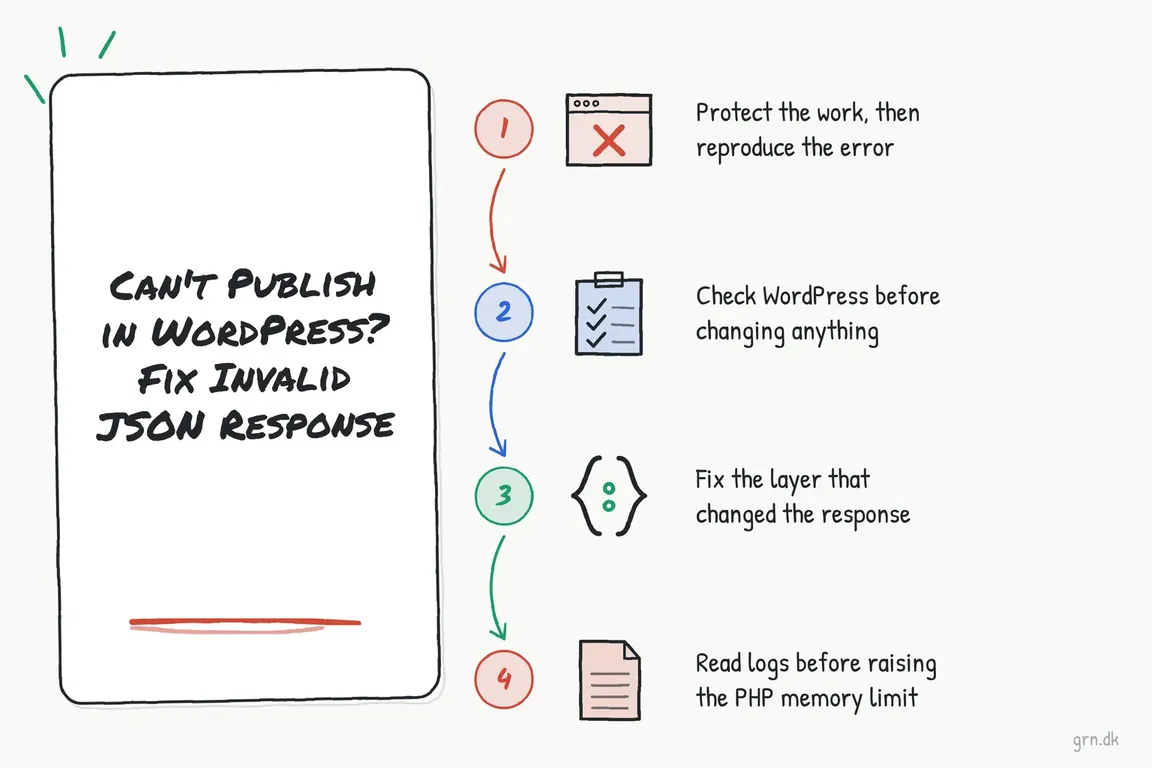
First, protect the work and reproduce the error once
Copy any unsaved content into a local document before troubleshooting. If the site supports orders, bookings, memberships, or active campaigns, take a configuration backup or confirm that a recent one exists before changing plugins, rewrite rules, or server settings.
Open the browser’s developer tools, select the Network panel, clear the existing entries, and attempt one save. Look for a failed request containing /wp-json/ or ?rest_route=. Record its URL, HTTP status, response body, and approximate time. That timestamp makes matching the request to CDN, firewall, hosting, and PHP logs much easier.
| Response | Likely layer | Best next check |
|---|---|---|
200, but the body is HTML |
Login redirect, security challenge, proxy page, or PHP output | Read the response body and identify who generated it |
301 or 302 |
Domain, HTTPS, proxy, or redirect configuration | Follow the redirect chain and check the destination host |
401 or 403 |
Expired session, permissions, nonce, WAF, or security plugin | Re-authenticate, then inspect security logs for the exact request |
404 |
Rewrite rules or an unavailable REST route | Compare pretty-permalink and query-string REST routes |
500, 502, 503, or 504 |
PHP failure, resource limit, or upstream server problem | Match the timestamp against application and hosting logs |
Check WordPress before changing anything
Visit Tools > Site Health > Status. REST API and loopback failures deserve attention, as do active PHP sessions and platform warnings. Site Health is not a complete diagnosis, but it can expose a server or application problem without disturbing visitors.
Then compare the WordPress Address and Site Address under Settings > General. Both should use the intended hostname and protocol. Old staging domains, mixed HTTP and HTTPS settings, reverse-proxy changes, and inconsistent www handling commonly produce redirects that look harmless in a browser but break an editor request.
Test the public REST API index from a terminal:
curl -i https://example.com/wp-json/
curl -i 'https://example.com/?rest_route=/'
WordPress normally exposes its REST index at /wp-json/ when pretty permalinks are enabled; the query-string form supports installations without them. A clean JSON response is a useful baseline. However, it does not prove that an authenticated post-update request works. The failed request in the Network panel remains the stronger evidence.
Fix the layer that changed the response
Redirect or protocol problem: correct the canonical domain, HTTPS termination, proxy headers, or overly broad redirect rule. Retest the original editor request rather than assuming that a working homepage proves the fix.
Rewrite or routing problem: if the query-string REST route works but /wp-json/ does not, inspect the web-server rewrite configuration. Resaving Settings > Permalinks can regenerate WordPress rewrite rules, but take a backup first and make sure you can restore the server configuration. It should not become a ritual applied without evidence.
Firewall or CDN block: find the request in the relevant event log. For Wordfence, a brief, supervised Learning Mode test can help confirm a false positive, but Learning Mode does not provide full firewall protection. Prefer an exact allowlist rule for a verified safe request over disabling the firewall or broadly exempting the REST API. Apply the same principle to host-level WAF and CDN bot rules.
Plugin, theme, or custom-code conflict: use staging when available. Start with the component changed immediately before the failure, then test one variable at a time. If staging is unavailable, plan a maintenance window rather than deactivating every plugin during normal trading. Classic Editor may temporarily change the symptom, but it does not repair a broken REST response.
Use logs before increasing PHP memory
Large pages, visual builders, custom fields, and media processing can exhaust memory, but the editor message alone is not proof. Look for Allowed memory size exhausted or a related fatal error in PHP, hosting, or WordPress logs.
If the logs confirm exhaustion, a WordPress limit can be set before WordPress loads wp-settings.php:
define( 'WP_MEMORY_LIMIT', '256M' );Your hosting account may impose a lower ceiling, and raising the limit can conceal inefficient code. Treat it as a measured capacity change, not a universal invalid-JSON fix.
Capture PHP errors without showing them to visitors
On staging—or briefly on production when necessary—enable logging, reproduce the failed save once, and then disable it:
define( 'WP_DEBUG', true );
define( 'WP_DEBUG_LOG', true );
define( 'WP_DEBUG_DISPLAY', false );
@ini_set( 'display_errors', 0 );
Review wp-content/debug.log alongside the failed network request and server logs. Because that default log location may be publicly reachable on a poorly configured server, remove or secure the file when the investigation is complete. Never leave warnings displayed to visitors.
Verify the repair as an operational fix
Test saving a draft, updating an existing post, publishing a new private test post, and uploading media if that was affected. Re-enable any temporarily changed security or caching controls, then confirm that another authorised editor can publish. Record the cause and change made so the next incident starts with evidence rather than folklore.
If the failure crosses WordPress, hosting, CDN, and security-provider boundaries, Greg can trace the complete request path, coordinate the relevant suppliers, and help leave the site with a supportable fix rather than another fragile workaround.
Related on GrN.dk
- AI Crawler Control for Business Websites: Protect Content Without Vanishing from Search
- Cloudflare Page Rules Debt: How Quiet Configuration Drift Breaks Business Websites
- When AI writes JSON, one bad field can break the workflow
Need help with this kind of work?
Get help tracing your WordPress publishing error Get in touch with Greg.