By Greg Nowak. Updated 11 October 2026.
A scheduled article needs to be live before the campaign email goes out. A stock import needs to finish before the morning rush. If someone on your team keeps checking whether WordPress did its scheduled work, the scheduler deserves attention.
Replace the default WP-Cron trigger when unpredictable delays create customer problems or recurring manual work. Start by checking what your host already provides: an existing scheduler may need fixing rather than replacing.
What changes when you use server cron?
Default WP-Cron checks for due tasks when requests reach WordPress. During quiet periods, work can wait for the next request. Server cron supplies a regular trigger, while WordPress and its plugins continue managing scheduled events.
You are changing how processing starts. A reliable trigger cannot repair a broken plugin callback, speed up a slow stock feed, or guarantee when an external service will finish.
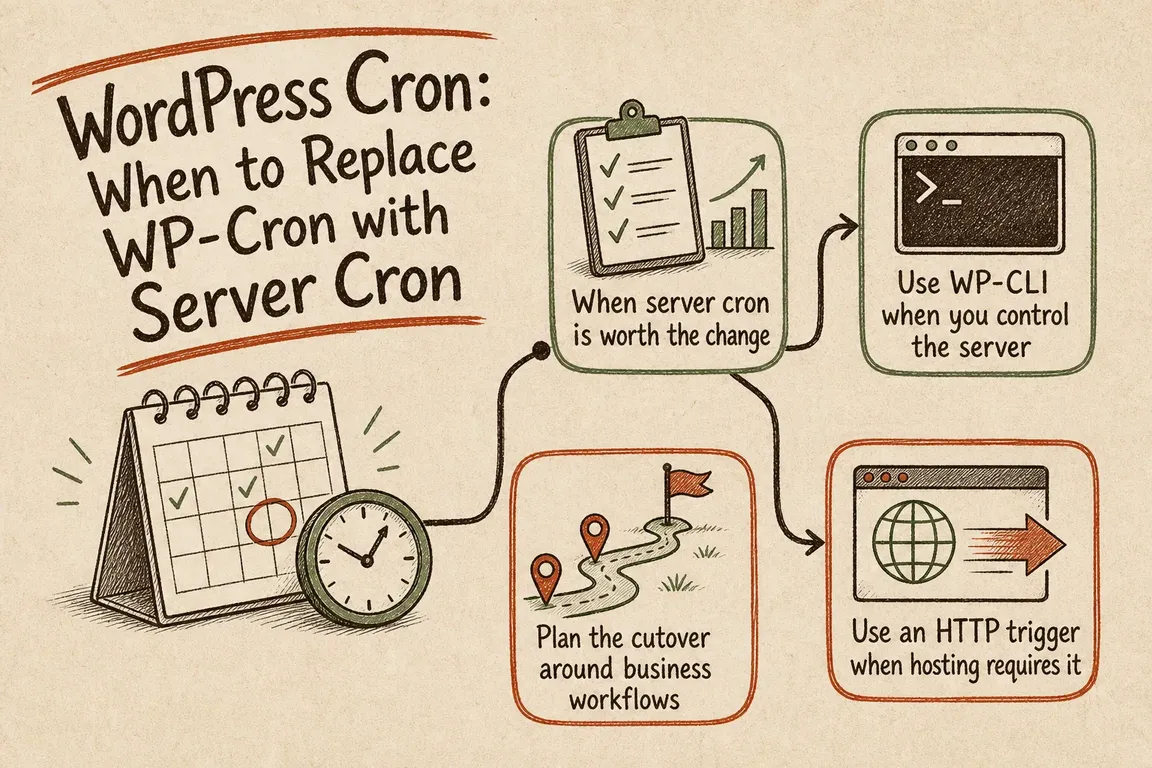
When is the switch worth it?
Judge the cost of lateness before looking at visitor numbers. A small membership site may have stricter deadlines than a busy brochure site. Ask what happens if a task runs five minutes late, an hour late, or tomorrow.
| Your situation | Suggested approach | Check before deciding |
|---|---|---|
| Brochure site with routine housekeeping | Keep default WP-Cron if delays are acceptable | Does anything depend on a deadline? |
| Scheduled publishing or regular imports | Consider a five-minute server trigger | Can the workflow tolerate that wait plus processing time? |
| Renewals, stock updates, or customer notices | Use a monitored scheduler; assess one-minute triggering | How will you detect overdue or failed work? |
| Host already manages scheduling | Verify the existing setup | Frequency, site coverage, logs, and ownership |
| Backlog grows despite regular runs | Investigate errors and processing capacity | Is work arriving faster than it finishes? |
A five-minute schedule can leave a newly due event waiting almost five minutes before it starts. Leave room for processing time when planning a campaign or operational deadline.
Prepare a migration you can verify
Write down the important workflows in business language: publish an article, update stock, send a reminder, synchronise a contact. Record the acceptable delay, evidence of completion, and owner for each. Your implementer can then map them to plugin hooks or queues.
Keep a configuration backup and choose a verification task whose effects you understand. Running overdue work can send emails or trigger other customer actions.
- Prepare the replacement schedule, execution account, paths, PHP environment, and logging.
- Test the exact command under the hosting account that will run it.
- Enable the replacement and verify an automatic run.
- Disable the page-request trigger, then verify another automatic run and the workflow result.
Following WordPress’s system scheduler guidance, add or update this setting in wp-config.php, before the stop-editing comment:
define( 'DISABLE_WP_CRON', true );Avoid duplicate definitions. This stops default automatic spawning; scheduled events remain available for the replacement to run.
Use WP-CLI when your host supports it
The WP-CLI command reference documents --due-now for running due events. A five-minute entry in a Linux user crontab looks like this:
*/5 * * * * /usr/local/bin/wp cron event run --due-now --path=/var/www/example.comReplace both example paths. Confirm the PHP executable and extensions available to cron; an absolute path to wp does not establish its entire environment. Keep plugins loaded so their callbacks are available.
For multisite, adding a URL targets one site:
*/5 * * * * /usr/local/bin/wp cron event run --due-now --path=/var/www/example.com --url=https://example.comCurrent documentation also supports --network for running across the network. Check wp help cron event run on the host before relying on that option, and verify coverage for every relevant site.
The current reference says --due-now respects WordPress’s cron lock. Still review overlap protection for your installed version and longest jobs. Retain output and errors, and monitor skipped or failed runs. Starting extra workers without understanding the bottleneck can add load.
Use an HTTP trigger when shell access is limited
A hosting panel or external scheduler can request https://example.com/wp-cron.php. The WordPress guidance above documents using wget; a five-minute example is:
*/5 * * * * /usr/bin/wget --delete-after https://example.com/wp-cron.phpChoose one replacement method. Test from the actual scheduler: authentication, redirects, caching, or firewall rules may prevent the request reaching WordPress. A successful HTTP response does not establish that the business task finished.
Verify that the business task finished
Use the WP-CLI event list before and after an automatic run:
wp cron event list --path=/var/www/example.com --fields=hook,next_run_gmt,next_run_relative,recurrenceRecurring events should advance; completed one-off events normally disappear. Then check the actual result: the published page, updated stock, or integration log.
For controlled manual execution:
wp cron event run --due-now --path=/var/www/example.comThis executes due work immediately. Treat it as a live execution, including customer-facing actions.
After migration, wp cron test reports an error when DISABLE_WP_CRON is true. It tests HTTP spawning, so use scheduler history and workflow evidence to assess your replacement.
Plugins using Action Scheduler need their queue checked too. Its processing documentation explains how processing limits and loopback requests affect throughput. Persistent overdue actions may need a dedicated Action Scheduler WP-CLI runner; increasing trigger frequency alone may not clear them.
Leave the team with a supportable setup
Document the command, interval, account, site coverage, log location, and alert owner. Agree how much overdue work warrants attention. For rollback, restore default spawning and withdraw the replacement schedule in a coordinated change.
If scheduling currently depends on someone remembering to check it, talk to Greg about your WordPress operations. Bring the workflow causing concern. I can help define the checks, coordinate the hosting and agency work, and make the handover clear.
Related on GrN.dk
- Debugging WordPress on a Live Site: A Safer Production Workflow
- WordPress Jobs Are Late Again: Audit WP-Cron Before Adding Plugins
- AI automations need a spend dashboard before the first runaway bill
Need help with this kind of work?
Talk to Greg about your WordPress operations Get in touch with Greg.