By Greg Nowak. Updated 25 September 2026.
A broken checkout, blank page, or sudden 500 error creates pressure to start changing things immediately. On a live WordPress site, that instinct can make the incident harder to diagnose—and more expensive for the business.
The safer objective is to capture useful evidence during a short, controlled window while protecting customers from error messages and avoiding unrelated changes. Reproduce the issue on staging whenever possible. If it only happens in production, agree on the test, owner, maintenance window, and rollback point before touching the configuration.
Contain the business impact first
Start by defining what is actually broken. Is the whole site unavailable, or is the problem limited to checkout, login, search, publishing, a scheduled import, or one browser? Confirm whether completed payments, submitted forms, and background jobs are still being recorded correctly.
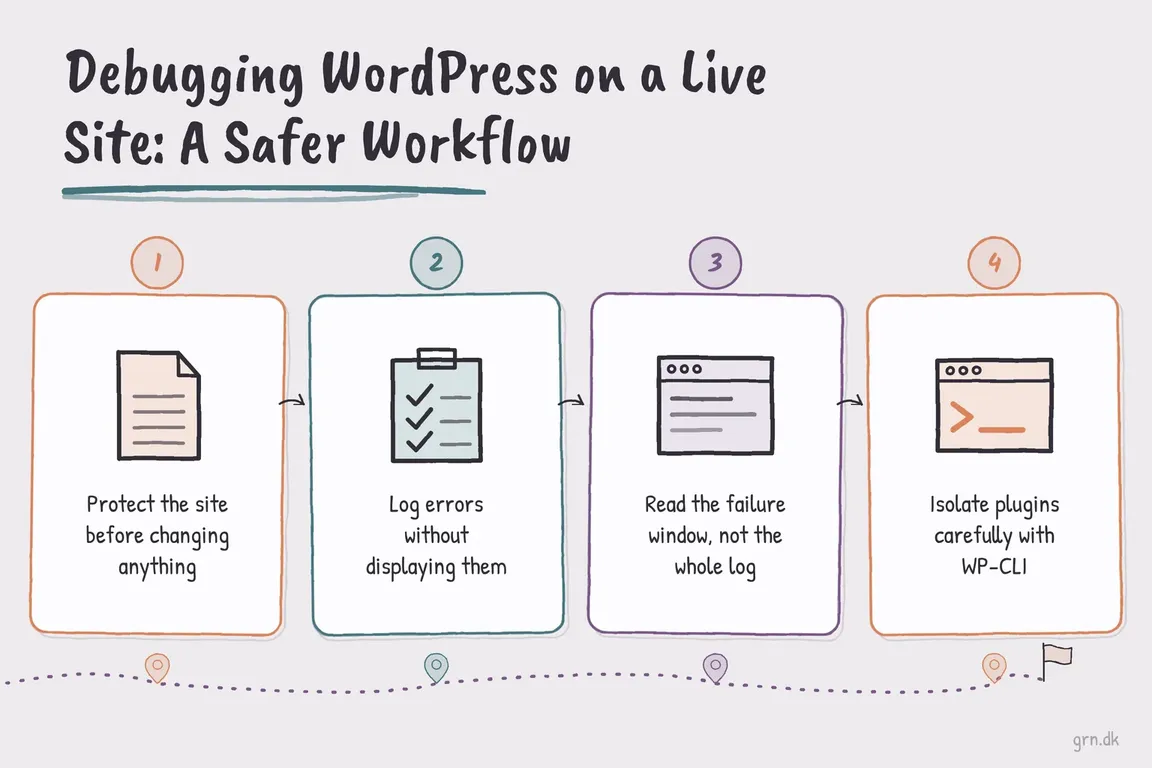
Before changing anything, verify that you have a recent backup and know how it will be restored. Record the incident start time, affected URLs, exact error, recent deployments, plugin or theme updates, PHP changes, hosting work, CDN rules, and third-party integration changes. Check the WordPress administrator email as well: Recovery Mode may already have identified a plugin or theme behind a fatal error.
| What you observe | Look at first | Lowest-risk next test |
|---|---|---|
| The entire site returns an error | Hosting health, PHP error log, recent deployment | Revert the most recent known change |
| One journey fails, such as checkout | Request response, integration log, PHP log | Run one controlled test transaction |
| The fault appeared after an update | Component named in the fatal error | Deactivate that component temporarily |
| Only some visitors see the problem | CDN, page cache, object cache, session or account state | Purge the narrowest relevant cache and retest |
| A scheduled task fails | Cron event, queue, loopback request, external API | Run only the affected job under supervision |
Log errors without showing them to visitors
WordPress recommends using its debugging tools on local or staging installations. When production logging is unavoidable, edit the existing definitions in wp-config.php; do not add duplicate constants. Place them before the stop-editing comment:
// Temporary production diagnostics: log, but do not display.
define( 'WP_DEBUG', true );
define( 'WP_DEBUG_LOG', true );
define( 'WP_DEBUG_DISPLAY', false );
@ini_set( 'display_errors', 0 );
This normally writes errors, warnings, and notices to wp-content/debug.log without printing them into customer-facing pages. PHP’s own guidance is also clear that production errors should be logged rather than displayed.
The default WordPress log can sit inside the public document tree. If the server permits it, send the temporary log to a writable location outside that tree:
define( 'WP_DEBUG_LOG', '/secure/path/wp-errors.log' );Treat the file as sensitive. Logs may contain server paths, email addresses, request parameters, or integration responses. Restrict access and do not record passwords, payment details, authentication tokens, or unnecessary personal data.
Reproduce once, then read the relevant window
Note the exact time, reproduce the failure once, and inspect entries from that small window. Prioritise fatal errors and uncaught exceptions that match the failed request. Notices and deprecations may indicate overdue maintenance, but they do not automatically explain the current outage.
If the WordPress log stays empty, check the hosting control panel, web-server log, PHP-FPM log, or platform logging service. A startup or syntax failure can occur before the runtime ini_set() instruction executes. Browser developer tools are more useful when the server responds successfully but JavaScript, an API request, or an asset fails.
Isolate plugins with the smallest useful change
If wp-admin is unavailable, WP-CLI can record the active plugins and deactivate the component supported by the evidence:
wp plugin list --status=active
wp plugin deactivate suspected-plugin
If a normal plugin prevents WP-CLI from bootstrapping WordPress, the global --skip-plugins parameter may let the command start. It does not skip must-use plugins, so it is not complete isolation.
Bulk deactivation should be reserved for an agreed maintenance window:
wp plugin deactivate --all --exclude=critical-pluginThis can interrupt payments, forms, authentication, security controls, multilingual routing, and caching. Capture the active-plugin list first, preserve essential components, and reactivate known-good plugins promptly. On multisite, confirm whether the plugin is site-active or network-active before acting.
Flush the cache you actually mean
A WordPress site may have browser, CDN, full-page, PHP opcode, and persistent object caches. They are different systems. The following WP-CLI command flushes the WordPress object cache:
wp cache flushIt does not automatically purge every page cache or CDN. WordPress also warns that, on multisite with persistent object caching, this command will typically affect every site and may create a production performance spike. Prefer a targeted URL or cache-group purge when the fault is narrow.
Do not treat WP_CACHE as a universal off switch. It controls loading of the advanced-cache.php drop-in; persistent object caching uses a separate object-cache.php drop-in, while hosting and CDN caches have their own controls.
Use expensive diagnostics deliberately
Leave SCRIPT_DEBUG disabled unless you are investigating WordPress core JavaScript or CSS. Avoid enabling SAVEQUERIES casually because recording every database query adds overhead. If WP_ENVIRONMENT_TYPE is set to development and WP_DEBUG is not explicitly defined, WordPress can enable debugging automatically—worth checking when messages appear unexpectedly.
Close the debugging window and verify the customer journey
Once you have enough evidence, restore the original configuration by editing the existing definitions. Disable temporary debugging, remove or securely archive the log, restore plugins, and clear only the caches affected by the repair. Then test the original customer journey and confirm that transactions, forms, scheduled work, and monitoring behave normally.
Finish with a short incident record: symptom, business impact, evidence, root cause, changes, rollback, and follow-up work. If the site handles payments, memberships, personal data, multisite networks, or shared infrastructure, early escalation is often safer than extended production experimentation. Greg can help contain the incident and turn the evidence into a practical repair plan.
Related on GrN.dk
- Cloudflare Page Rules Debt: How Quiet Configuration Drift Breaks Business Websites
- How to Check Whether a PHP Constant Is Defined (Without Breaking Production)
- PHP Only on the Front Page: Safer Checks for Live Sites
Need help with this kind of work?
Discuss your WordPress issue with Greg Get in touch with Greg.