Home
GrN.dk

Main navigation

  • Articles
  • Cases
  • Services
  • Your Digital Project Manager
  • About Greg Nowak
  • Image Gallery
  • Contact
User account menu
  • Log in

Join my community / free newsletter — sign up here

Breadcrumb

  1. Home

Locked out of your Apple developer account? Fix it before October 1

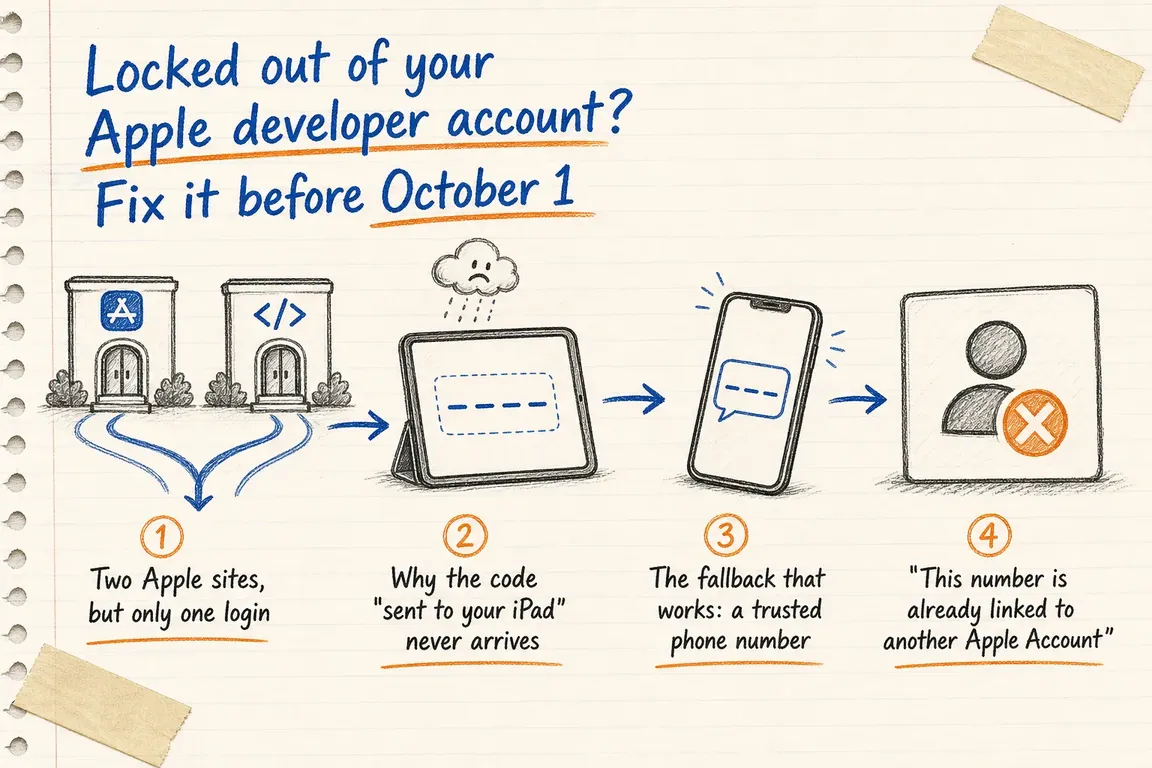
Illustrated infographic summarizing: Locked out of your Apple developer account? Fix it before October 1

By Greg Nowak. Last updated 2026-08-20.

Apple has mailed every developer account an email titled "Updated Apple Developer Program License Agreement Now Available". The update adds Attachment 14, which covers alternative distribution terms in the EU, and it takes effect on October 1, 2026. To accept it, someone has to sign in at https://developer.apple.com/account and click a button. On paper that is a two-minute job.

For many small app owners it is not. You own an app, a consultant built it and maintains it, and you last logged in to Apple's developer site years ago, if ever. Now Apple demands a verification code, the code goes to a device you no longer have, and adding your own phone number fails with a strange message about the number belonging to another account. I see this exact chain of problems regularly, so here is how the pieces fit together and how to get back in, in the order that works in practice.

Two Apple sites, but only one login

The confusion usually starts with geography. Apple's developer world has two front doors:

  • https://developer.apple.com/account is where you manage the membership itself: accept license agreements, renew the yearly fee, handle certificates and identifiers.
  • https://appstoreconnect.apple.com (App Store Connect) is where the app lives: builds, the App Store listing, user reviews, sales reports.

Neither of these sites owns your login. Both just ask you to sign in with an Apple Account, which is Apple's current name for what used to be called an Apple ID. The account, its password and its two-factor authentication live in a third place: https://account.apple.com. On an iPhone or iPad the same settings sit under Settings, then your name at the very top, then Sign-In & Security.

This matters because people who get stuck at the verification-code step go hunting for two-factor settings on developer.apple.com or somewhere in App Store Connect. There are none. The developer site cannot show you which devices receive your codes, cannot add a phone number, and cannot change anything about how you sign in. All of that belongs to the Apple Account, and account.apple.com is where you manage it.

Why the code "sent to your iPad" never arrives

You type your email and password at developer.apple.com, and Apple announces that a verification code has been sent to your iPad. You look at your iPad, and nothing arrives. You wait, retry, and wait some more. It feels like the system is broken, but it is doing exactly what it was told.

Verification codes go to trusted devices. A trusted device is an iPhone, iPad or Mac that is signed in with that exact Apple Account, which is a much narrower thing than a device you own or a device sitting on your desk. What counts is which account the device is signed in with, and whether it matches the account you are trying to use right now.

Small businesses often run two Apple Accounts without realizing it. There is the personal one, which holds your everyday iCloud, photos and App Store purchases, and there is the developer one, often created years ago on a company email address just to hold the app membership. When the login screen says it sent a code "to your iPad", it means an iPad that was at some point signed in with the developer account. Two failure modes cover almost every case I meet:

  • The trusted device is an old iPad that has since been retired, wiped, sold, or handed to a grandchild. The code lands on a screen nobody looks at, or nowhere at all.
  • The iPad in your hand is signed in with your personal Apple Account, not the developer one. Codes for the developer account will never show up on it, no matter how long you wait.

Checking takes ten seconds: open Settings on the device and read the name at the very top. Tap it and you see the email address of the Apple Account this device is signed in with. If that address is not the developer account's address, this device is invisible to the developer login.

The fallback that works: a trusted phone number

You could sign an iPad into the developer account and make it a trusted device, but that swaps your daily Apple Account off the device, which most people do not want. The dependable route is a trusted phone number on the developer Apple Account. Once one is registered, every sign-in screen offers a way out: click "Didn't get a code?" and Apple will text the number or call it with an automated voice message instead of pinging devices you cannot find.

To add one:

  1. Go to https://account.apple.com and sign in with the developer Apple Account. This is the account itself, not the developer portal. If you can still complete one login anywhere, spend it here first.
  2. Open the Sign-In and Security section and find Trusted Phone Numbers, under account security.
  3. Add the number. Apple verifies it with a text message or an automated voice call, and it is active as soon as you type the code back in.

If you have an iPhone or iPad that is signed in with the developer account, the same list sits under Settings, your name, Sign-In & Security.

There is an obvious chicken-and-egg problem here: adding a trusted number requires you to sign in once, and signing in is the thing that is broken. Sometimes an old trusted device still works for one final code, sometimes the trusted number on file is an old office line that still rings somewhere. Whatever working path remains, use it to add a current phone number before it disappears too.

"This number is already linked to another Apple Account"

Here is the trap that catches the most people. You try to add your own mobile number to the developer account and Apple refuses with a message that the number is already linked to another Apple Account. That other account is almost always your personal one, where the same number serves as a trusted number or as the account's contact number. Apple will not always let one mobile number do security duty on two accounts at once.

You have three ways around it:

  • Use a different mobile number. A second phone in the business, a spouse's number, an office mobile. The only requirement is that a real person answers it, today and in two years.
  • Move the number. Sign in to your personal Apple Account at account.apple.com, remove the number from its trusted phone numbers (leave at least one other trusted method behind so you do not lock the personal account instead), then add the freed number to the developer account.
  • Use a landline. Apple's verification also works as an automated voice call, so a fixed office line can serve as a trusted number. Pick the call option instead of the text option when Apple verifies it.

Only the Account Holder can click accept

One more restriction is worth knowing before a deadline. A developer account has roles, and only the person holding the Account Holder role can accept license agreements like the October update. Your consultant may have Admin access to everything else in App Store Connect and still be unable to accept on your behalf. The login that has to work is precisely the Account Holder's, and for most small owners that is the one address they never use.

And if no trusted device and no trusted number works at all, the remaining path is Apple's account recovery process. It is deliberately slow, because it exists to keep strangers out, and it can take days before you regain access. A recovery wait that starts on September 29 does not end well against an October 1 deadline. That is the whole argument for sorting this out while nothing is on fire.

Do this today, before you are locked out

  1. Find out which email address is your developer Apple Account. Your consultant knows, and Apple's membership emails (like the agreement email) land in its inbox.
  2. Sign in at https://account.apple.com with that address and look at two lists: the devices signed in with the account, and the trusted phone numbers.
  3. Remove devices you no longer have. Anything on that list can receive your codes and, in the wrong hands, approve a sign-in.
  4. Make sure at least one trusted phone number is a phone someone in the business actually answers. Add a second one if you can.
  5. Then go to https://developer.apple.com/account, sign in, and accept the updated license agreement well before October 1, 2026.

The whole exercise takes fifteen minutes when the access works, and it removes the one scenario where days matter: needing to accept something by a date while Apple's recovery clock ticks.

If you own an app and are not certain any of this is in order, that is a normal state of affairs, not a failure. GrN.dk audits and repairs Apple developer access for small app owners: which account holds the membership, who can sign in, what it trusts, and what breaks first. Write to Greg if you want it checked before the next deadline instead of during it.

Last modified
2026-08-20

Tags

  • apple-developer
  • two-factor-authentication
  • apple-account
  • app-store-connect
  • small-business-it

Review Greg on Google

Greg Nowak Google Reviews


Written recommendations from Trafik og Veje, Aarhus Municipality (2011) and AgroTech (2010) — read them on LinkedIn.

Illustrated infographic summarizing: Locked out of your Apple developer account? Fix it before October 1
Locked out of your Apple developer account? Fix it before October 1
2026-08-20

Apple's updated developer agreement must be accepted by October 1, 2026, and many small app owners cannot even log in. Here is where Apple's two-factor codes really go, and how to fix your access before the deadline.

Illustrated infographic summarizing: Cloudflare Workflows Now Charges by the Step—Price the Outcome
Cloudflare Workflows Now Charges by the Step—Price the Outcome
2026-08-20

Cloudflare Workflows now bills paid plans for steps and stored state. Here is how to track cost per completed outcome without weakening reliability.

Illustrated infographic summarizing: Google’s AI Search Toggle Is a Publishing Decision, Not an SEO Setting
Google’s AI Search Toggle Is a Publishing Decision, Not an SEO Setting
2026-08-19

Google’s AI Search toggle forces a commercial choice about visibility, attribution and content use. Here’s how to make that choice responsibly.

Illustrated infographic summarizing: From Supplier Invoice to Bookkeeping: AI with a Control Checkpoint
From Supplier Invoice to Bookkeeping: AI with a Control Checkpoint
2026-08-18

AI can reduce the work involved in processing supplier invoices, but reliable bookkeeping requires validation, duplicate checks, approval and a clear audit trail.

Illustrated infographic summarizing: Nginx 1.30 Changed the Upstream Defaults—Test Before You Upgrade
Nginx 1.30 Changed the Upstream Defaults—Test Before You Upgrade
2026-08-17

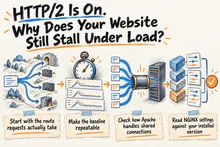
Nginx 1.30 defaults upstream proxying to HTTP/1.1 with keepalive enabled. Here is what to inspect, model and test before upgrading.

Illustrated infographic summarizing: OpenAI’s Assistants API Shuts Down in Ten Days. Is Your App Ready?
OpenAI’s Assistants API Shuts Down in Ten Days. Is Your App Ready?
2026-08-16

OpenAI’s Assistants API shuts down on August 26, 2026. Learn what to inventory, how to preserve state and how to cut over without breaking the product.

Illustrated infographic summarizing: WordPress 7.1 Forces the Editor Into an iframe—Test Your Custom Blocks
WordPress 7.1 Forces the Editor Into an iframe—Test Your Custom Blocks
2026-08-15

WordPress 7.1 removes the non-iframe editor fallback. Learn how to audit custom blocks, test real workflows and fix compatibility issues before launch.

Illustrated infographic summarizing: GitHub will stop sending jobs to stale self-hosted runners
GitHub will stop sending jobs to stale self-hosted runners
2026-08-14

GitHub starts enforcing runner versions on August 24, 2026. Audit and upgrade self-hosted runners before builds and deployments start stalling.

Illustrated infographic summarizing: Your AI Agent Has Shell Access. What Can It Reach?
Your AI Agent Has Shell Access. What Can It Reach?
2026-08-13

A practical guide to mapping what a shell-enabled AI agent can reach, then containing its access to files, credentials, networks, tools, and high-impact actions.

Illustrated infographic summarizing: Cloudflare Changed DoH JSON. What Else Is Parsing DNS as Text?
Cloudflare Changed DoH JSON. What Else Is Parsing DNS as Text?
2026-08-12

Cloudflare’s DoH JSON change exposes brittle DNS parsing. Find affected scripts, test both formats, and choose a safer integration contract.

More articles

Built by AI — available for your business. The daily articles on this site are researched, written and illustrated by an autonomous AI pipeline. At nowa.dk I install the same kind of AI automation in businesses at fixed prices — site in Danish, English version here, and web/marketing agencies have a dedicated page.

RSS feed

Footer

  • All articles
  • Contact

GrN.dk — AI automation, web platforms, web optimization, data handling and logistics.

© 2026 GrN.dk · LinkedIn · Contact · AI automation in Danish: nowa.dk

Behind GrN.dk: Individual Entrepreneur Codecrafter · Tax ID 305669096 · Bakhtrioni St. 22, 0194 Tbilisi, Georgia · official business register