By Greg Nowak. Updated 17 October 2026.
An Access database can quietly become the system that keeps a business moving: quotes, bookings, stock, client records, monthly reports. When it starts slowing down or only one person knows how it works, deciding what to do next becomes difficult.
The sensible response depends on what is failing and what the business needs. A dependable desktop tool may deserve maintenance. A shared database may need splitting. A workflow that now needs browser access or tighter permissions may justify a migration. Start by identifying which problem you actually have.
First, understand what would stop if Access stopped
Before changing tables or VBA, ask the people using the system to walk through a normal job from start to finish. Include the spreadsheet they prepare beforehand and the report they email afterwards. Those steps often contain rules that never made it into the database.
Write a short system brief covering:
- Who uses it, from which locations, and who owns support.
- Where the files live, the Access versions in use, and linked data sources.
- Essential forms, reports, imports, exports, and scheduled tasks.
- Known errors, manual workarounds, and the business impact of downtime.
Make a recoverable copy before investigating. For a file-based shared back end, arrange a period when everyone is out before copying it. Test restoration to a separate location; seeing a backup file is different from knowing you can resume work.
Should you fix, split, or replace the database?
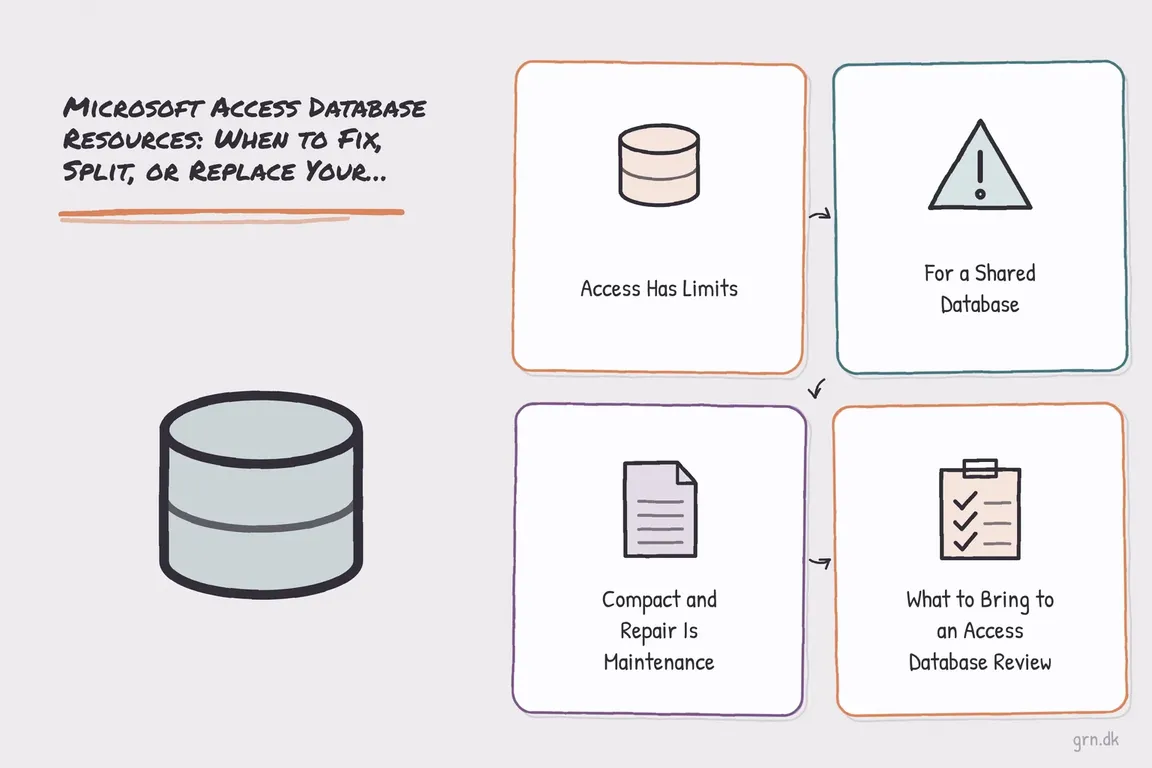
Microsoft's Access specifications list a maximum of 2GB per database file, minus space needed for system objects, and 255 concurrent users. These are ceilings, not capacity recommendations. Judge the system by response times, reliability, growth, and working conditions rather than how close it sits to those numbers.
| What you find | Best next step to assess | What success looks like |
|---|---|---|
| Stable desktop workflow with occasional defects | Maintain and improve | Reliable backups, clear ownership, fewer workarounds |
| Several local-network users opening one shared application file | Split front end and back end | Each user runs a local front end |
| Slow searches, reports, or repeated file growth | Investigate design and workload | Measured improvement on real tasks |
| Remote users opening an Access back end across a VPN or Azure file share | Change how data or the application is hosted | No Access file traffic across that remote connection |
| Browser access, complex permissions, or demanding availability needs | Compare server-backed Access with replacement | A supported design that meets explicit requirements |
For performance complaints, record which operation is slow and under what conditions. Review indexes, joins, unnecessary data retrieval, and attachment growth before assuming a rebuild will fix it.
Split a shared Access database on a reliable local network
Splitting separates shared tables into a back-end file while forms, reports, queries, macros, and VBA remain in the front end. Each user gets a local front-end copy. This reduces the chance that an application-file problem affects everyone and makes updates easier to manage.
Follow Microsoft's database splitting procedure:
- Back up, stop users making changes, and work from a local copy.
- Select Database Tools > Move Data > Access Database to launch the splitter.
- Place the back end in a network folder with appropriate permissions. Use a UNC path such as
\\server\share\system_be.accdb, avoiding drive letters that vary between computers. - Test linked tables and essential workflows, then distribute a local front end to each user.
Keep a master front end and a simple version record so support can identify which release someone is running.
Treat Compact and Repair as controlled maintenance
File > Info > Compact & Repair Database reclaims unused space and can repair some damage. It does not establish that the data is complete or the underlying fault is gone.
Microsoft's maintenance guidance requires exclusive access and recommends an immediate backup: repair can truncate damaged table data. Check important records and outputs afterwards. For shared databases, schedule maintenance; Compact on Close can briefly disrupt availability.
If corruption returns, investigate network interruptions, file deployment, hardware, and the actions preceding each failure. Repeated repairs should trigger diagnosis.
Remote access needs a different architecture
A VPN makes a folder reachable; it does not make a remote connection behave like a local network. Microsoft explicitly warns against split Access databases over a WAN or Azure file share because of slow performance and corruption risk.
Options include retaining Access while moving tables to SQL Server, Azure SQL, or Dataverse, or hosting the application through Remote Desktop Services close to its data. Compare licensing, administration, connection quality, and support responsibility. A server database also needs query and application testing; changing storage alone does not guarantee responsive forms.
Plan migration around the work people must still complete
Inventory relationships, validation rules, queries, VBA, reports, credentials, and hard-coded paths. Decide which behaviour must survive and which workarounds can disappear.
Microsoft's SQL Server Migration Assistant guide covers assessment, schema conversion, and data migration. Use its assessment report to identify conversion issues before committing to a plan.
Agree acceptance checks with users: create and amend a record, handle an exception, produce an invoice or report, and reconcile totals. Compare source and target record counts, financial values, and representative outputs. Set a cutover window, control changes during the final transfer, and define when rollback remains possible. Include training and ongoing support in the budget.
Bring the problem to a focused review
A useful starting pack includes user locations, file sizes, screenshots, sample outputs, backup arrangements, and the errors or deadlines driving the decision. Agree how sensitive data will be handled before sharing a database copy.
For owners, operations leads, and agencies supporting a client's system, Greg can help assess what is worth keeping and turn the findings into a prioritised plan. Talk to Greg about your Access database, starting with the workflow that needs attention.
Related on GrN.dk
- Agentic AI: How It Works and When It’s Worth Using
- AI automations need a spend dashboard before the first runaway bill
- Locked Out of Your Apple Developer Account? Fix Access Before October 1
Need help with this kind of work?
Talk to Greg about your Access database Get in touch with Greg.