By Greg Nowak. Last updated 2026-09-09.
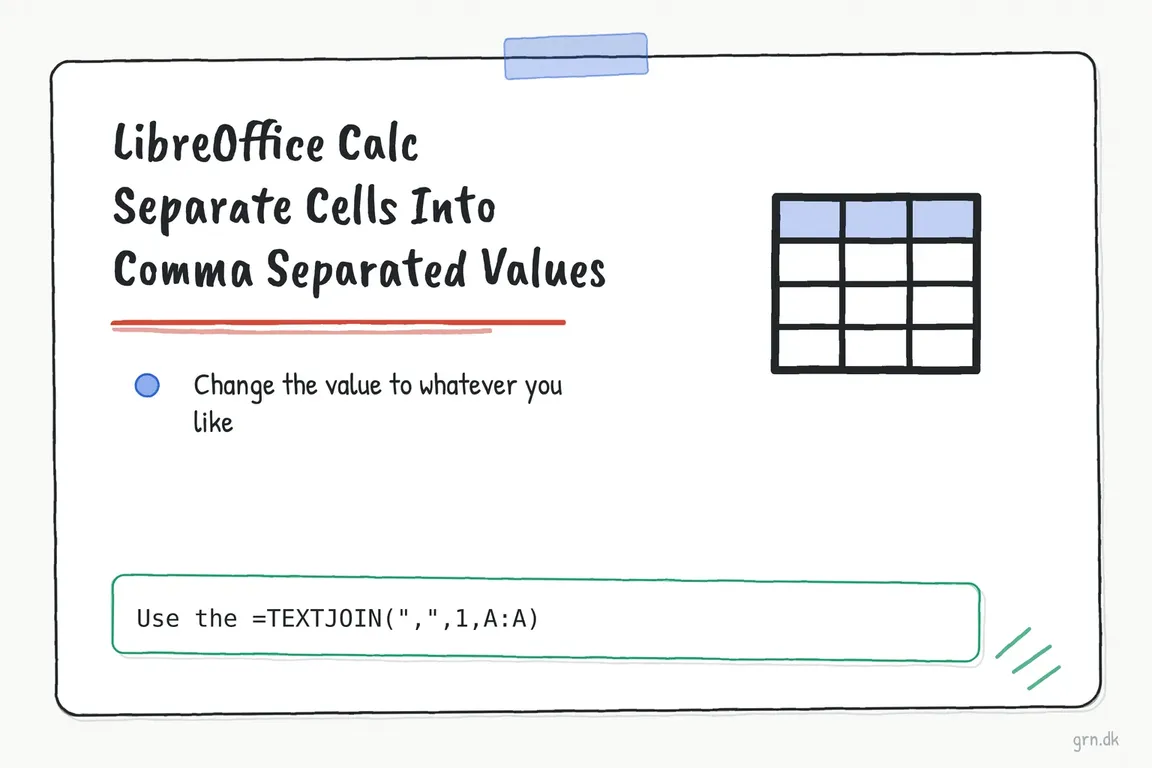
Need to paste a column of product codes, campaign tags or reference numbers into a tool that expects a comma-separated list? LibreOffice Calc can combine those cells with TEXTJOIN, saving you from adding commas by hand.
The quick formula is =TEXTJOIN(",";1;A2:A100). Before using the result, check whether the destination wants a single list or a CSV file containing separate rows and columns. That distinction matters when preparing a CRM import, handing data to an agency or updating a product catalogue.
Join a column into one comma-separated cell
Suppose A1 contains the heading Product code, and A2 to A4 contain SKU-101, SKU-102 and SKU-103.
- Select an empty cell outside the source range, such as B2.
- Enter
=TEXTJOIN(",";1;A2:A4)and press Enter. - The result is
SKU-101,SKU-102,SKU-103.
The first argument, ",", supplies the separator. The second, 1, tells Calc to ignore empty cells and empty strings. The final argument identifies the cells to combine. LibreOffice documents these options in its TEXTJOIN reference.
Adjust the range to match your data. Starting at A2 keeps the heading out of the result. A bounded range also makes the selection easier for a colleague to review; remember to extend it when you add more rows.
Why does one formula use semicolons and another commas?
Calc lets you configure the characters separating formula arguments. The examples here use semicolons. If your installation uses commas, the equivalent is:
=TEXTJOIN(",",1,A2:A100)The original whole-column shortcut, =TEXTJOIN(",",1,A:A), still makes sense with comma argument separators. It includes every populated cell in column A, however, including headings and unrelated notes. Put the formula outside column A so it does not reference itself.
If Calc rejects the formula, check Tools → Options → LibreOffice Calc → Formula, or LibreOffice Preferences on macOS. The Formula options control argument separators and whether English function names are used. Keep the comma inside quotation marks: that is the character you want in the output.
Choose the right formula for the handoff
| What you need | Formula or action | Check before sending |
|---|---|---|
| A compact list from a column | =TEXTJOIN(",";1;A2:A100) |
Exclude the heading and select every intended record. |
| A list with spaces after commas | =TEXTJOIN(", ";1;A2:A100) |
Confirm the destination accepts the extra spaces. |
| One joined result per row | =TEXTJOIN(",";1;A2:D2), then fill down |
Place the result outside columns A–D. |
| A list retaining empty positions | =TEXTJOIN(",";0;A2:A10) |
Expect adjacent commas where values are empty. |
| A file with separate records and fields | Save the prepared sheet as Text CSV | Match the receiving system’s import specification. |
Check the values before copying the result
For business data, a plausible-looking list is only the first check. Compare a few source records with the result, including the first and last entries.
- Duplicates: decide whether repeated codes are intentional. Joining cells does not remove duplicates.
- Whitespace: inspect entries that look blank or have spaces around a code. A space is still text.
- Identifiers: verify that codes such as
00123retain their leading zeros. If an earlier import already removed them, joining cannot restore them. - Dates and amounts: check the actual output against the destination’s required format instead of assuming the source cell’s appearance will carry through.
When you need a fixed copy, copy the result cell, open Edit → Paste Special → Paste Special in a spare cell, and select Values Only. This creates a handoff value independent of the original formula. LibreOffice’s Paste Special documentation explains the available presets.
When should you export CSV instead?
Use CSV export when the receiving system expects a file with defined columns and records. A plain join does not add CSV quoting. For example, a company name containing a comma can be mistaken for two fields.
Keep the data in separate cells, save your working spreadsheet as an ODS file, then use File → Save As → Text CSV. Only the current sheet is exported; CSV does not preserve the workbook’s sheets and formatting. See LibreOffice’s CSV saving guidance.
Select Edit filter settings to review the export options. For a conventional comma-delimited import, choose a comma field delimiter and a double-quote text delimiter. Use the character set requested by the destination, commonly UTF-8. The export settings also control quoting and whether values are saved as displayed.
Test a small sample in the receiving tool before importing the full file. Include a name containing a comma, an identifier with leading zeros and any accented characters your data uses.
Make recurring spreadsheet work easier to hand over
For a recurring task, keep a template with labelled input cells, a separate output area and a short note explaining the destination’s requirements. Name the person responsible for checking each export so the process remains clear when someone else takes over.
If your team regularly rebuilds lists or repairs imports, talk to Greg about the spreadsheet workflow. Bring an anonymised sample and the destination’s import requirements to make the discussion concrete.
Related on GrN.dk
- From Supplier PDFs to Product Data: Where AI Needs a Second Check
- Handling Multibyte Characters and Strings in R: Fixing CSV Encoding Errors
- Logistics Optimization in 2026: Fix the Flow Before You Buy More Tech
Need help with this kind of work?
Talk to Greg about your spreadsheet workflow Get in touch with Greg.