By Greg Nowak. Last updated 2026-09-18.
Cockpit, Monit, ISPConfig, and Landscape are often compared as Ubuntu server tools, but they do not solve the same problem. One simplifies hands-on administration, one watches local services, one runs hosting operations, and one manages an Ubuntu fleet.
That distinction matters when you are responsible for uptime, client sites, or an infrastructure handover. Buying or installing the tool with the longest feature list can leave you with overlapping dashboards but no clear owner for patching, alerts, access, and recovery.
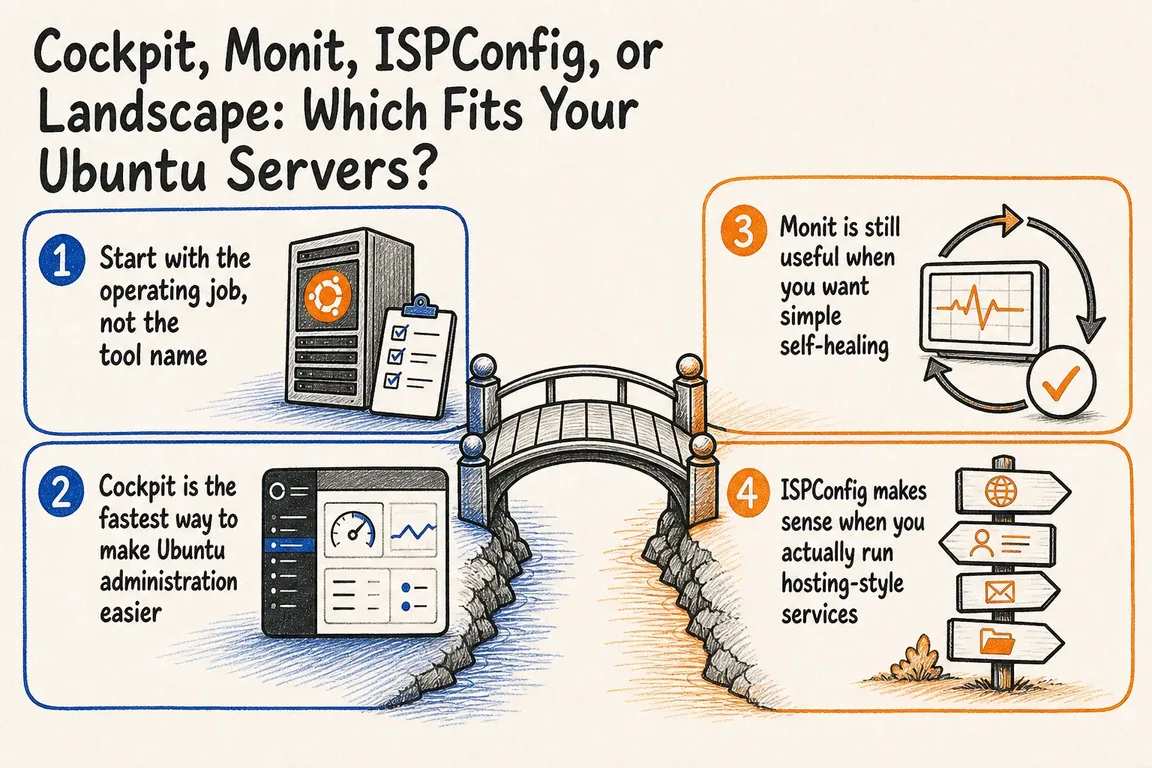
Start with the operational job. Then choose the smallest maintainable combination that covers it.
The short answer
| Tool | Best fit | Primary job | Do not mistake it for |
|---|---|---|---|
| Cockpit | One server or a small estate | Browser-based Linux administration | A complete monitoring platform |
| Monit | Servers needing lightweight local checks | Alerts and automatic recovery | Fleet governance or deep observability |
| ISPConfig | Agencies and hosting operators | Sites, mail, DNS, quotas, and delegated access | A general-purpose operations dashboard |
| Landscape | Growing or governed Ubuntu fleets | Centralized updates, inventory, scripts, and reporting | A hosting control panel |
These choices are not always exclusive. Cockpit and Monit, for example, can form a sensible small-server combination: Cockpit for deliberate administration and Monit for unattended checks and recovery. The important point is to avoid deploying two tools without deciding which one owns each task.
Choose Cockpit for practical, hands-on administration
Cockpit provides a web interface for routine Linux work while retaining the underlying system tools and conventions. It is useful when a technical team wants faster access to services, logs, storage, networking, accounts, and performance information—or when an agency needs to hand a server to another competent operator without relying on undocumented shell habits.
For Ubuntu LTS, the Cockpit project recommends the updated version from Ubuntu’s official backports repository:
. /etc/os-release
sudo apt install -t ${VERSION_CODENAME}-backports cockpit
sudo systemctl enable --now cockpit.socket
Cockpit is normally reached over HTTPS on port 9090. Do not expose that port indiscriminately: restrict network access, use appropriate authentication, and review who receives administrative privileges.
Cockpit is a good operational interface, but it is not the whole resilience plan. You still need tested backups, off-server alert delivery, security updates, and a documented response when a check fails.
Choose Monit for lightweight checks and automatic recovery
Monit is strongest as a local watchdog. It can monitor processes, programs, files, directories, filesystems, resource use, and network services, then alert or run an action when a condition fails. A typical use is restarting an unresponsive web service after repeated failed checks while notifying the operator.
Two commands are especially useful after editing the configuration:
sudo monit -t
sudo monit summary
The first validates the control file; the second gives a compact status view. Validation should be part of every change rather than something discovered during an incident.
Use automatic repair carefully. A restart can restore service, but it can also hide a recurring memory leak, capacity problem, or bad deployment. Set thresholds that resist brief spikes, deliver alerts somewhere people actually monitor, and preserve enough logs to investigate the cause. For critical services, test both the recovery action and the alert path.
Choose ISPConfig when you operate hosting, not merely servers
ISPConfig is an open-source Linux hosting control panel capable of managing multiple servers from one panel. Its scope includes websites, DNS, email, databases, quotas, SSL, shell access, traffic limits, monitoring, and separate administrator, reseller, and client permissions.
That makes it relevant to agencies managing many conventional client sites or organizations providing internal hosting services. Delegation is the key advantage: routine domain, mailbox, database, or quota work can happen through defined roles instead of unrestricted server access.
For a couple of application servers, however, ISPConfig may introduce services and workflows you do not need. Its monitoring module should not be the reason to install it. Select ISPConfig when the business genuinely needs a hosting control plane and carefully check compatibility before adding it to an already customized machine.
Choose Landscape when consistency and governance matter
Landscape is Canonical’s centralized administration platform for Ubuntu systems. Its current documentation covers inventory, software deployment, updates and security patches, reporting, repository management, alerts, remote scripts, and access controls across servers, desktops, cloud instances, and other Ubuntu devices.
It becomes attractive when the real questions are fleet-wide: Which machines are missing updates? Can the team deploy a controlled change to a defined group? Who is authorized to manage which systems? Can management or an auditor obtain a consistent report?
Landscape uses an agent on managed machines and a central service accessible through a web portal or API. It can suit on-premise, cloud, and hybrid estates, but adoption still requires planning: define machine groups, maintenance windows, access roles, update policy, and exceptions before automating changes.
How to choose without creating another neglected dashboard
Write down five responsibilities before deploying anything: routine administration, service recovery, patching, backups, and incident alerting. Assign an owner and a system of record to each. Then run a small trial on a non-critical machine and test an actual failure, not just a successful login.
- Small application estate: Cockpit for administration, with Monit where local recovery provides real value.
- Client hosting operation: ISPConfig for service provisioning and delegation, supported by separate backup and alerting arrangements.
- Expanding Ubuntu fleet: Landscape for consistent updates, inventory, reporting, and controlled remote work.
- Mixed requirement: combine tools only where their responsibilities are explicit and non-duplicative.
The best setup is not the one with the most screens. It is the one your team can explain, test, secure, and hand over without ambiguity.
Make the decision fit the way your team works
If your current stack has overlapping panels, uncertain alert ownership, or too much knowledge concentrated in one person, Greg can help turn the tool choice into a maintainable operating model. Talk with Greg about simplifying your Ubuntu server operations.
Related on GrN.dk
- The AI-built tool your team relies on needs an owner
- Your AI workflow has logs. Can they explain one bad decision?
- AI Agents Need a Spending Brake, Not Just a Billing Dashboard
Need help with this kind of work?
Discuss your Ubuntu server setup Get in touch with Greg.