By Greg Nowak. Last updated 2026-11-25.
If a printer, script or business app signs in to Exchange Online SMTP AUTH with a mailbox username and password, it could stop sending mail when Microsoft changes the default. Start with the SMTP AUTH Clients report in the Exchange admin center. It shows which addresses still use Basic Auth. You’ll need to trace each address back to the things that send from it. A single mailbox can handle order confirmations, scanned documents and backup alerts.
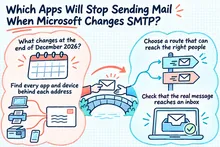
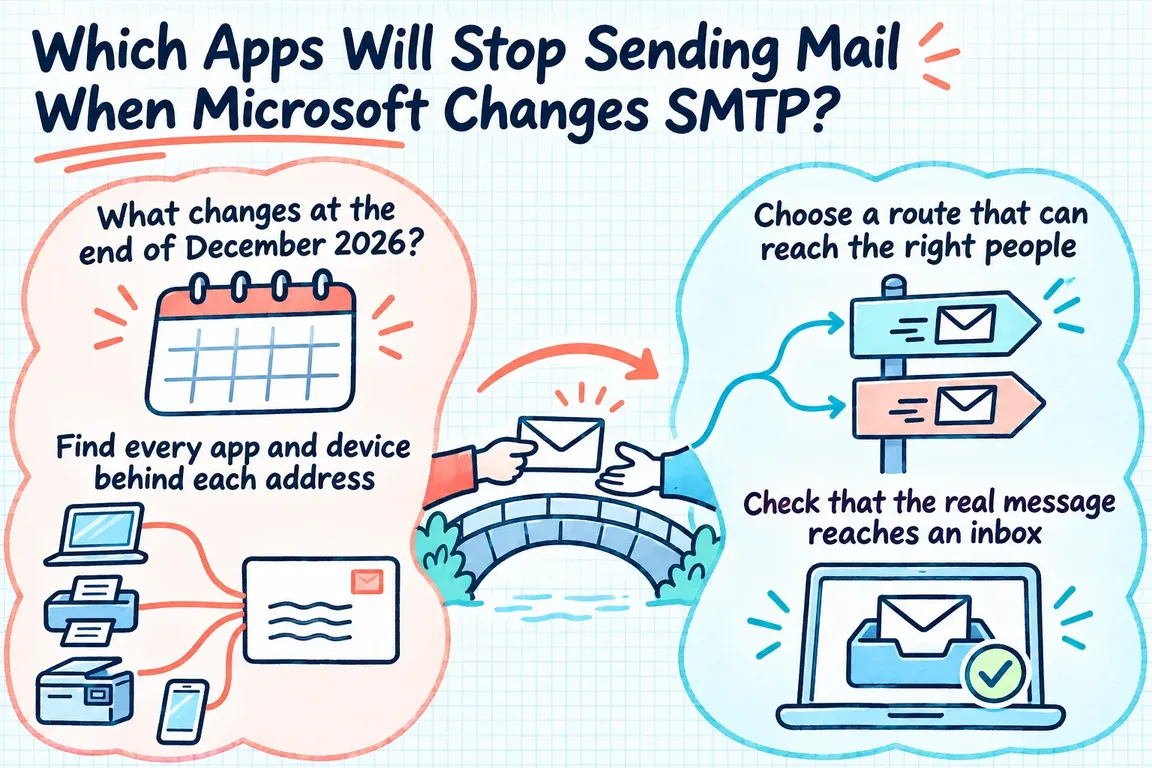
What changes at the end of December 2026?
Microsoft plans to turn off Basic authentication for SMTP AUTH by default on existing Exchange Online tenants at the end of December 2026. Admins on those tenants can turn it back on if they need more time. If you do, name someone to finish the migration and agree on a date to switch it off again.
For tenants created after December 2026, Basic authentication will be unavailable by default and OAuth will be the supported authentication method. Microsoft says it will announce the final removal date in the second half of 2027. Microsoft’s deprecation timeline
Find every app and device behind each address
In the Exchange admin center, go to Reports > Mail Flow and open SMTP AUTH Clients. The report starts with seven days of activity. You can select up to 90 days, so pick a window that covers the jobs you expect to see, then export the displayed rows to CSV.
Read the Authentication Protocol column. TlsAuthLogin means Basic Auth and XOAUTH2 means Modern Auth. A connection can use TLS and still sign in with a password. Use the authentication column to decide which senders to investigate. Microsoft’s SMTP AUTH Clients report guide
Look for each sender address and its SMTP host in printer and scanner settings, application mail settings and scheduled jobs. Give each confirmed workflow its own row, even when several share an address. Record what triggers the email, where the sender runs, who owns it and whether it emails staff, people outside the organisation or both. If an address shows both Basic Auth and Modern Auth, check each workflow before you mark the address as migrated.
Check infrequent jobs separately. A quarterly export or an alert that fires only when something fails can fall outside the reporting window. Inspect its settings or trigger a controlled test. When deciding what to fix first, ask what happens if the email never arrives. A quiet backup alert can matter more than a routine notification that goes out every day.
Choose a route that can reach the right people
Start with who actually receives the mail and where the sender runs. A cloud-hosted app that emails customers needs to reach external inboxes. An office scanner that emails only staff has more options. Check what the sender supports and which ports it can reach before you configure a relay.
| Mail route | Who can receive the mail? | What to check |
|---|---|---|
| SMTP submission with OAuth | Internal and external recipients | The sender needs OAuth support and TLS 1.2 or later, plus a licensed mailbox that can use SMTP AUTH. Microsoft recommends port 587. |
| Microsoft 365 SMTP relay | Internal and external recipients | Check access to port 25. The inbound connector authenticates using a TLS certificate or a dedicated static public IP address. Microsoft excludes third-party hosted services from this route. |
| Direct Send | Recipients within your Microsoft 365 organisation only | Check port 25 and the domain configuration. Microsoft recommends Direct Send only for legacy devices or apps when its other methods are unsuitable. |
Check the From address before switching. With SMTP submission, an app that signs in as one mailbox and sends as another needs Send As permission for the sign-in account. With connector-based relay, the From address can be in an accepted domain without having a mailbox of its own. Make sure the route you choose can keep the From address the workflow needs. Microsoft’s setup guide for devices and applications
If a custom PHP app uses PHPMailer, the project’s Microsoft example connects to smtp.office365.com on port 587 with STARTTLS and uses an OAuth token provider for XOAUTH2. Use the example to set up a test with the actual background job. If the app uses refresh tokens, check that the job still sends after the original access token expires and that the app saves a replacement refresh token when it receives one. PHPMailer’s Microsoft XOAUTH2 example
Check that the real message reaches an inbox
Scan a sample document, run the scheduled task or fire a test alert. Open the message in an internal inbox and, if the workflow sends outside the organisation, in an external inbox too. Check the From address, the message itself and any attachments. If the message fails to arrive, start with the device or app’s SMTP logs and any bounce message.
Add the new mail route, test date, delivery result and owner to the inventory. Once a workflow you’ve moved to OAuth sends again, look for Modern Auth activity in the Exchange report. If the address still shows Basic Auth on messages sent after the switch, use the inventory to trace the other devices or jobs that share it.
Greg can pull the Exchange report, work out which devices and jobs use each mailbox, and move affected senders to OAuth or a supported relay. He can test delivery to the inboxes each workflow needs and hand over the inventory with owners and test results. The next person replacing a printer or changing a mailbox will know which emails to check.
Related on GrN.dk
- AI Content and Google: Fix the Process Before You Publish More
- AI Workflow Retries: Stop One Request Becoming Two Jobs
- Apache 2.4.68: What to Check Before You Call It Patched
Need help with this kind of work?
Talk to Greg about finding and migrating the Microsoft 365 senders that still use mailbox passwords. Get in touch with Greg.