By Greg Nowak. Last updated 2026-10-11.
If whoopsie-upload-all is consuming a CPU core, the quickest response is to stop the relevant process. The better response is to understand which part of Ubuntu’s crash-reporting pipeline is running, preserve any evidence you need, and then choose the least disruptive fix.
Ubuntu uses Apport to collect crash information. Whoopsie submits eligible reports to Ubuntu’s error tracker. Despite its name, /usr/share/apport/whoopsie-upload-all is supplied by the apport package on Ubuntu 24.04, while the separate whoopsie package provides the submission daemon and its systemd units. That distinction matters when stopping services or removing packages.
What is whoopsie on Ubuntu?
Whoopsie is Ubuntu's crash-report uploader. When a program crashes, Apport writes a report to /var/crash, and the whoopsie daemon (whoopsie.service) sends it to the Ubuntu Error Tracker at errors.ubuntu.com when error reporting is on. Stopping or removing it is safe. The only loss is that Ubuntu developers stop receiving your crash reports. A busy whoopsie-upload-all usually means a big crash queue, so also look at what keeps crashing.
Confirm what is actually consuming the CPU
Do not start by purging packages. First identify the process, its parent and the installed systemd units:
ps -eo pid,ppid,%cpu,%mem,etime,cmd | grep -E '[w]hoopsie|[a]pport'
systemctl list-unit-files 'whoopsie*' 'apport*'
systemctl status whoopsie.service whoopsie.path apport-autoreport.service --no-pager
Unit names vary between Ubuntu releases, so a “unit not found” message is useful information rather than necessarily an error. Check recent logs and the size of the crash queue as well:
journalctl -u whoopsie.service -u apport-autoreport.service --since '1 hour ago' --no-pager
sudo du -sh /var/crash
sudo ls -lh /var/crash
A large queue or repeated errors may explain the activity, but high CPU can also be a symptom of a particular broken report or package defect. Keep relevant files until you have finished diagnosing the underlying crash. Clearing /var/crash destroys useful evidence and does not correct the application that crashed.
Choose the smallest intervention that solves the problem
| Situation | Recommended action | Trade-off |
|---|---|---|
| Immediate production impact | Stop the active units | Temporary; they may return after reboot or activation |
| You do not want automatic uploads | Use Ubuntu’s diagnostics setting or disable the path/timer units | Crash reports remain less useful to Ubuntu maintainers |
| A unit keeps being reactivated | Mask the relevant units | Prevents even manual activation until unmasked |
| The machine must not retain this tooling | Simulate, then purge the packages | Removes local crash-reporting and support capabilities |
Stop the current upload safely
Use the unit names found during inspection. On systems where all three exist, the immediate stop is:
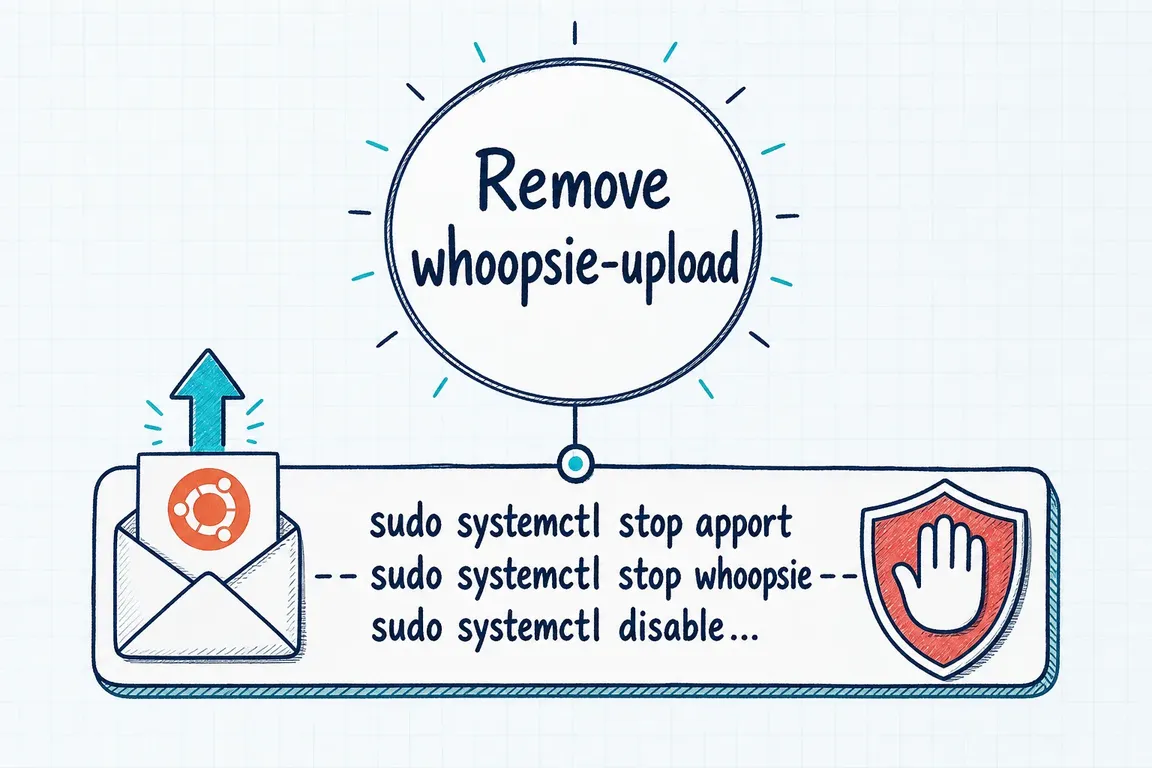
sudo systemctl stop whoopsie.service whoopsie.path apport-autoreport.serviceThis stops current activity but does not necessarily prevent a later restart. It is preferable to killing processes repeatedly because systemd can otherwise reactivate them through a path or timer unit.
Disable future reporting without removing packages
On Ubuntu Desktop, the supported user-facing route is under Settings → Privacy & Security, then Diagnostics or Telemetry, depending on the release. Set error reporting to disabled if that matches your organisation’s privacy and support policy.
For a command-line system, inspect /etc/default/apport and change its existing enabled value to 0:
sudoedit /etc/default/apportThen disable the activation units that are actually installed:
sudo systemctl disable --now whoopsie.path
sudo systemctl disable --now apport-autoreport.path apport-autoreport.timer
If activation continues, masking is the stronger option. Unlike disable, a systemd mask prevents all activation, including manual starts. Apply it deliberately and only to units present on the machine:
sudo systemctl mask --now whoopsie.service whoopsie.path
sudo systemctl mask --now apport-autoreport.service apport-autoreport.path apport-autoreport.timer
Remove Apport and Whoopsie only when policy requires it
The old advice to run systemctl disable apport is incomplete on current Ubuntu releases: there may be no simple apport.service, and path- or timer-activated units can be involved. Likewise, removing only whoopsie does not remove whoopsie-upload-all when that file belongs to apport.
Preview the package impact before making a permanent change:
sudo apt --simulate purge apport whoopsieRead the proposed removal list. On a managed desktop, server image or support workstation, other tooling may expect Apport to be available. If the simulation matches your intention, proceed with:
sudo apt purge apport whoopsieapt is sufficient; installing or using aptitude is unnecessary for this task.
Verify the result and keep a rollback path
pgrep -af 'whoopsie|apport'
systemctl --failed
systemctl is-enabled whoopsie.path apport-autoreport.path apport-autoreport.timer
If you masked units, reverse that decision with systemctl unmask. If you removed the packages, reinstall them with sudo apt install apport whoopsie, restore the desired diagnostics setting, and review /etc/default/apport. Package defaults and enabled units can differ by Ubuntu release, so verify the resulting state rather than assuming every unit should be enabled.
If this issue appeared across a fleet or inside a client environment, the valuable work is usually not the one-line removal command. It is finding the recurring crash, agreeing on a reporting policy and applying a reversible configuration consistently. Contact Greg if you want help turning that investigation into a safe operational change.
Related on GrN.dk
- How to Flush the DNS Cache on Ubuntu—and Verify the Fix
- Ubuntu Logs: Troubleshooting with journalctl and dmesg
- WordPress PageSpeed: What to Fix First for Better Core Web Vitals
Need help with this kind of work?
Get help with your Ubuntu environment Get in touch with Greg.