By Greg Nowak. Last updated 2026-11-27.
When you close the books for November after Black Friday, start with the amount that actually reaches your bank account. Group Shopify Payments transactions by payout ID, match each net amount to the bank deposit, and trace the payout to the corresponding entries in e-conomic. That gives you a starting point when you need to explain a difference between sales and bank deposits. It could come down to a fee, a refund, a card dispute, or a payout that reaches the bank the following month.
Could your business use this? nowa.dk sets up AI automation for Danish companies.
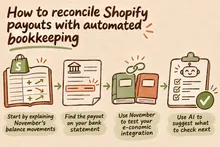
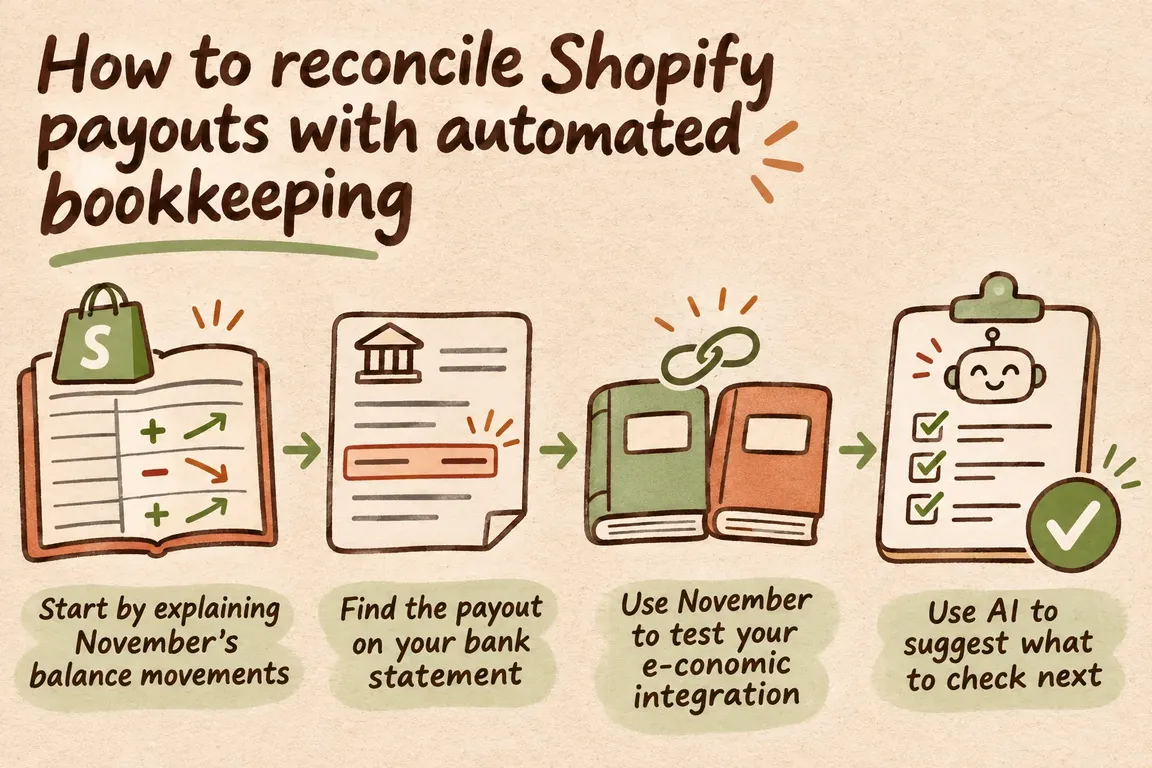
Start by explaining November’s balance movements
Open the activity report under Finance → Documents in Shopify. Select November and the currency in which your payouts are settled. Start with the opening and closing balances. The difference between them should equal the net movement for the period, which already accounts for payouts and fees. Expand the relevant groups to see individual refunds and card disputes, as well as any holds or releases. If you receive payouts in multiple currencies, review a separate report for each one. Shopify’s guide to the activity report
The sales report tracks orders and sales activity. The activity report uses the dates when transactions affect your Shopify Payments balance. Both reports can therefore be correct and still show different totals for November. Check the date range and time zone, and exclude payments from other providers from the reconciliation. Shopify states that the data is subject to a three-day delay. If you download the activity report just after month-end, download it again before using it to close the books for November. Shopify’s explanation of report dates and the data delay
Find the payout on your bank statement
Download the payout overview for the period, with one row per payout. Under Finance → Payouts, you can open an individual payout and export its transactions as a CSV file. Group the rows by Payout ID and reconcile each currency separately. Add up the values in the Net field, which already reflects the fee deduction. If the sum differs from the payout total, check the payout details for adjustments and amounts from previously failed payouts that Shopify has tried to send again. Pending transactions have a blank payout ID. Track them separately. Shopify’s guide to payout exports and CSV fields
Look for the bank reference in both Shopify and your bank statement. If it’s missing from the statement, compare the amount, currency, and date. Leave the payout unmatched if more than one bank entry fits. Shopify can show several payouts on the same date, and the Deposited status indicates that Shopify has sent the payout to the bank. A payout sent in late November may therefore appear on the bank statement in December. Record both the date Shopify sent it and the bank’s posting date so you can follow up during the next reconciliation. Shopify’s explanation of payout statuses and bank references
| What you see | Where to look | What to do |
|---|---|---|
| Shopify shows Deposited, but the November payout is missing from the bank statement | The bank reference and the statement for the first banking days in December | Track the payout until you find the bank entry. Record both dates. |
The CSV file shows the type adjustment |
The transaction date and amount in the payout details | Use the more specific transaction type if Shopify shows one. |
| A transaction has no payout ID | The transaction status in Shopify | Track pending rows until Shopify links them to a payout. |
| Shopify and the bank match, but there’s still a discrepancy in e-conomic | The accounting entries for that payout | Check for missing or duplicate entries and differences in dates. |
Use November to test your e-conomic integration
If your online store already uses Storebuddy, start with that integration. e-conomic describes it as a way to record orders, credit notes, fees, and payouts from payment acquirers, among other things. In Storebuddy, first set up Shopify as a sales channel. You can then add Shopify Payments as a payment acquirer and give the integration access to payout data. The Storebuddy integration in e-conomic · Storebuddy’s guide to Shopify Payments
Start with a November payout that matches the bank statement and find the corresponding entries in e-conomic. Then try payouts that include refunds, adjustments, or entries around month-end. Can the bookkeeper use the amount, date, and reference to trace the payout and explain the difference from the accounting entries? If the existing integration provides that trail, you can focus on the discrepancies that are still open.
If transaction details are missing, you can retrieve them through Shopify’s GraphQL API as part of a separate reconciliation. Each balance transaction has its own ID, a link to the associated payout, and fields for the amount, fee, and net amount. Use the transaction ID to identify rows you’ve already processed when you fetch the data again. Use the payout ID to group rows that belong to the same payout. Shopify’s documentation for balance transactions
Use AI to suggest what to check next
Use fixed rules to total amounts, check currencies, and match records by ID and bank reference. Give AI the remaining discrepancies along with the relevant transaction descriptions. For each row, have it suggest a possible cause, identify the description or entry that supports it, and tell the bookkeeper where to check. If the CSV file only shows adjustment, the next step may be to open the transaction in Shopify, where the type may be more specific. If the descriptions and fields give too little to go on, leave the row unresolved. Shopify’s explanation of transaction types in CSV files and payout details
Put the payout ID, Shopify’s net amount, the amounts recorded by the bank and in e-conomic, the dates, and the unresolved discrepancy on the same row. Place the AI suggestion next to the reference to the relevant transaction. The bookkeeper can then check the explanation against the records, approve it, or leave the item open for follow-up.
Greg can review a month’s payouts, test the e-conomic integration, and reconcile transactions by payout ID. He can set up AI to suggest causes based on the transaction descriptions and provide a list of discrepancies for the bookkeeper to follow up on. You can read about Greg’s AI automation service for Danish companies at nowa.dk.
Related on GrN.dk
- AI-bogføring: Find udgifter, der lander i den forkerte måned
- AI til Excel: Automatisér månedsrapporten med tal, du kan kontrollere
- AI til markedsføring: Lav kampagneudkast med kontrollerede priser
Need help with this kind of work?
Talk to Greg about reconciling a month’s worth of Shopify payouts against your bank statement and e-conomic. Get in touch with Greg.