By Greg Nowak. Last updated 2026-11-13.
Old exports, temporary reports and generated files can quietly fill a server. A small cleanup command can keep storage under control, but it needs a clear rule: which files are disposable, how long they should remain available, and whether subfolders are included.
You can use find from Bash to select files by age and delete them. Start by listing the matches, check the age calculation, then enable deletion. The examples below target GNU find on Linux; check your server’s implementation before using them elsewhere.
Preview the files before deleting anything
Replace /srv/app/exports with the absolute path to your cleanup folder. This command lists matching regular files directly inside that folder without deleting them:
find "/srv/app/exports" -depth -mindepth 1 -maxdepth 1 -type f -mtime +14 -printReview the results against what the application actually produces. Look for customer deliverables, files awaiting import, or anything someone might still need. An old modification timestamp does not prove that a file is disposable.
Once the selection is right, run the same command with -delete replacing -print:
find "/srv/app/exports" -depth -mindepth 1 -maxdepth 1 -type f -mtime +14 -deleteThe -type f test restricts this to regular files, leaving directories in place. Keep -delete at the end, after the selection tests. GNU documents that deletion enables depth-first traversal automatically; including -depth in both commands keeps the preview’s traversal consistent with deletion. See the GNU deletion guidance.
What does “older than X days” actually mean?
-mtime measures time since the file’s contents were last modified. It does not measure when the file was created or when it entered your business workflow. -ctime means a file status change, not creation time.
The easily missed detail is rounding: GNU find rounds elapsed age down to whole 24-hour periods before applying the comparison. Therefore, -mtime +14 matches files at least 15 full days old. A file modified 14 days and 12 hours ago does not match. The GNU age-range documentation explains this calculation.
| Intended age threshold | GNU find test | When a file starts matching |
|---|---|---|
| At least 7 full days | -mtime +6 | 168 hours after modification |
| At least 14 full days | -mtime +13 | 336 hours after modification |
| Keep the original +14 rule | -mtime +14 | 360 hours after modification |
| At least 30 full days | -mtime +29 | 720 hours after modification |
Agree on that interpretation before automating cleanup. “Keep two weeks of exports” should have a meaning that both the operations team and the person writing the script understand.
Choose whether subfolders are included
The first example deliberately stays within one folder. -maxdepth 1 prevents descent into its subdirectories, while -mindepth 1 excludes the starting folder itself. These controls are described in the GNU directory traversal documentation.
To include subfolders, remove -maxdepth 1. If the folder contains several kinds of content, narrow the selection as well. For example, this previews only matching CSV files throughout the folder tree:
find "/srv/app/exports" -depth -mindepth 1 -type f -name '*.csv' -mtime +14 -printKeep the filename pattern quoted so Bash passes it to find unchanged. Review this broader selection before replacing -print with -delete. Separate cleanup commands for separate output folders are often easier to maintain than one expression with many exceptions.
Why change the original command?
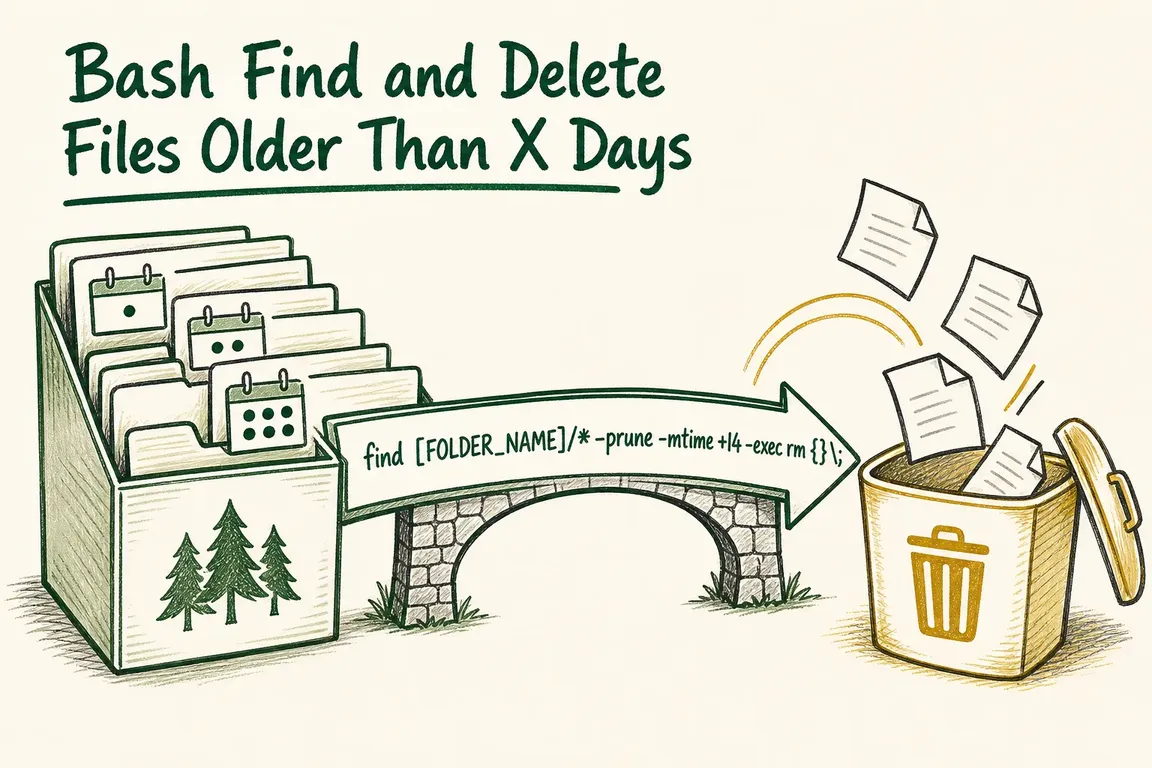
The original example used a folder wildcard, -prune and a separate rm invocation for each match. That can serve a narrow purpose, but several decisions were hidden inside the syntax.
Bash normally excludes names beginning with a dot when expanding *, as documented in its filename expansion rules. Passing the quoted folder directly to find includes hidden entries in the search, so inspect those in the preview too.
Explicit depth limits also make the intended search boundary easier to read. Do not combine -prune with -delete: deletion enables depth-first traversal, making pruning ineffective.
If an existing script needs to retain the rm approach, this version passes filenames directly and batches them into fewer invocations:
find "/srv/app/exports" -mindepth 1 -maxdepth 1 -type f -mtime +14 -exec rm -- {} +Preview its selection first. For straightforward deletion, prefer -delete; GNU’s file deletion discussion explains its efficiency and security advantages.
Make cleanup a routine someone owns
Before adding the command to cron or another scheduler, document the folder, file types, retention rule and responsible person. Run it with an account limited to the relevant files, and make sure failures reach someone who can act on them.
A successful manual preview is a useful check, but it does not freeze the folder. Files can change between preview and deletion. For active application data, coordinate cleanup with the process that creates and consumes it. For application logs or managed backups, check the existing rotation or retention settings before adding another deletion job.
Confirm how valuable files would be restored, then review the first scheduled runs. Revisit the rule when an agency hands over a project, an export format changes, or a new integration starts using the same directory.
If your team needs help turning scattered maintenance scripts into a manageable operating routine, talk to Greg. A focused review can clarify what to automate, who owns it, and how to spot problems early.
Related on GrN.dk
- How to Delete Files and Folders Older Than X Days in Linux
- Apache 2.4.68: What to Check Before You Call It Patched
- Google Review Link Generators: What Small Teams Actually Need
Need help with this kind of work?
Talk to Greg about your maintenance workflow Get in touch with Greg.