By Greg Nowak. Last updated 2026-07-16.
A WordPress admin lockout rarely calls for a clever hack. It calls for a controlled recovery. The account may belong to a former employee, its recovery email may be inaccessible, or a plugin failure may have taken the login screen down. Whatever the cause, the business priority is the same: restore the right person’s access without damaging the live site, creating an undocumented administrator, or weakening security.
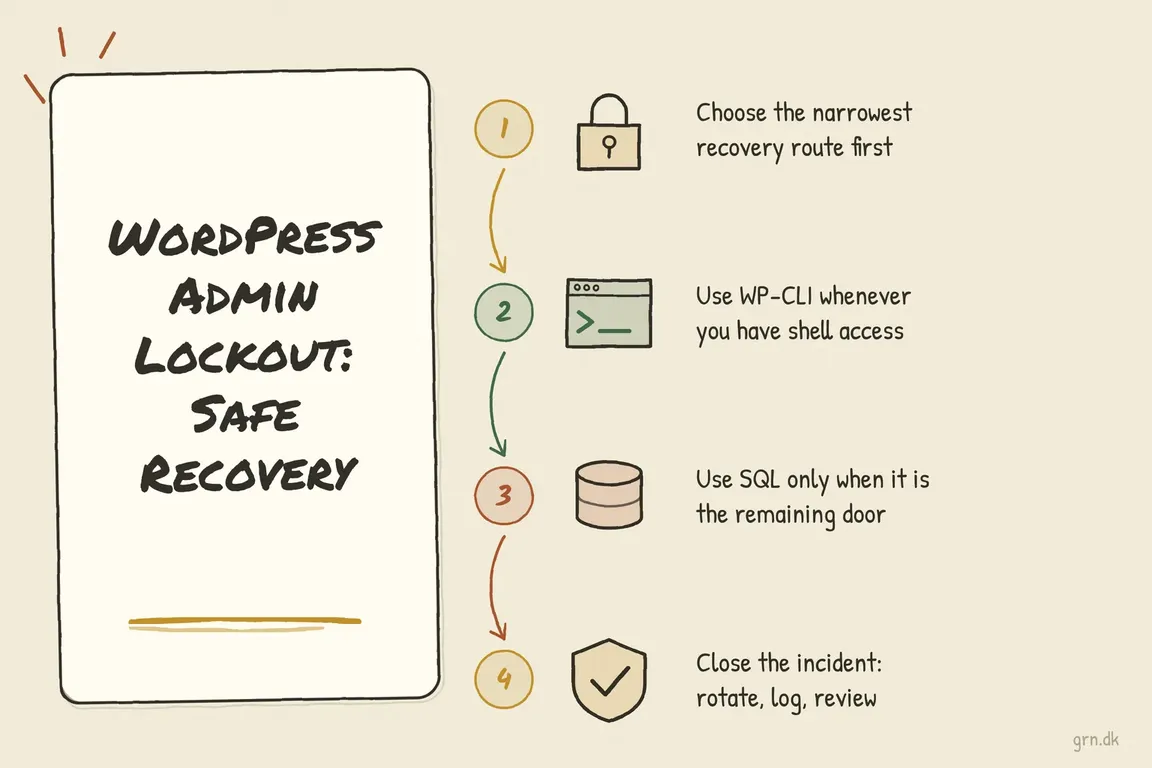
Work from the least invasive option to the most invasive: use the normal password reset when possible, prefer WP-CLI when you have shell access, and edit the database only when it is genuinely the last route in. Before changing anything, take a database backup or hosting snapshot and confirm that you are working on production—not a similarly named staging site.
Choose the narrowest recovery route
| Situation | Best first action | Reason |
|---|---|---|
| The account email still works | Use “Lost your password?” | WordPress completes the reset through its normal workflow. |
| You have shell access | Use WP-CLI | The update goes through WordPress rather than bypassing it. |
| Only the recovery email is wrong | Update the email, then use the normal reset | This avoids changing the password unnecessarily. |
| Only database access remains | Make one targeted SQL change | A narrow change is easier to verify and reverse. |
Use WP-CLI when shell access is available
WP-CLI is usually the cleanest operational route because WordPress performs the user update. Start by identifying the correct administrator. Do not assume user ID 1 belongs to the current owner.
wp user list --role=administrator \
  --fields=ID,user_login,user_email \
  --format=table
If the email address is obsolete, update it first. That may be enough to restore the standard password-reset process:
wp user update 42 \
  [email protected] \
  --skip-email
If a password change is still necessary, let WordPress store it through its current password-handling system:
wp user update 42 \
  --user_pass='A-new-long-unique-password'
Treat that password as a placeholder, not something to copy literally. Command arguments may be retained in shell history or exposed by server logging, so use an approved secure-input or secret-management method when the environment provides one. Keeping the notification email enabled for a password change can also provide a useful security signal to the account owner.
On multisite or multidomain installations, target the intended site with --url=https://example.com. The user-list command supports --network when a network-wide inventory is required. If broken site code prevents WP-CLI from loading, try the global --skip-plugins and --skip-themes flags. Must-use plugins still load, so these flags do not isolate every extension.
Use SQL only when it is the remaining door
Direct database work bypasses normal application controls and cache handling. Confirm the database, table prefix, and intended user before editing. Many installations do not use the default wp_ prefix.
SELECT ID, user_login, user_email
FROM yourprefix_users
ORDER BY ID;
If the problem is simply an unreachable email account, check that the new address is not already assigned to another user. Then make that single change and use the normal password-reset flow:
UPDATE yourprefix_users
SET user_email = '[email protected]'
WHERE ID = 42;
Verify the affected row immediately. If the change does not appear in WordPress, a persistent object cache may need to be cleared through the hosting platform. Do not alter roles or capabilities unless you have established that authorization—not authentication—is the actual problem.
MD5 is an emergency bridge, not the recovered state
Older WordPress recovery instructions commonly recommend writing an MD5 value into user_pass. WordPress retains compatibility with legacy hashes, but since WordPress 6.8 it uses bcrypt-based password hashing by default. An MD5 database update should therefore be reserved for a situation where no safer recovery route is available.
UPDATE yourprefix_users
SET user_pass = MD5('temporary-unique-password')
WHERE ID = 42;
If you must use this fallback, log in and promptly set another new, unique password through wp-admin or WP-CLI. That sends the password through WordPress’s current hashing path and replaces the temporary credential, which may remain in database-client history or operational logs. Never reuse it on another service.
Close the incident properly
Regaining access is only half the job. A professional recovery leaves ownership clearer than it was before the lockout.
- Confirm that the account belongs to a named person or accountable business role.
- Remove emergency administrators and other temporary credentials.
- Review all current administrators and remove access that is no longer required.
- Store recovery details in the team’s approved password manager, not email or chat.
- Document the production host, account owner, recovery email, and handover contact.
- Test the normal password-reset route after the incident.
If the lockout was unexplained—or you discover an unfamiliar administrator—treat it as a possible security incident rather than a simple password problem. Preserve relevant logs and review hosting, SFTP, deployment, database, and WordPress access before declaring the matter closed.
Keep integrations separate from human logins
Scripts, reporting tools, and external services should not share a person’s administrator password. WordPress Application Passwords provide individually revocable credentials for API access over HTTPS. Create one descriptive credential per integration and revoke it when the tool or supplier is retired. Application Passwords are for programmatic access; they cannot be used for an interactive wp-admin login.
Most repeat lockouts come from unclear ownership rather than WordPress itself. Add access review to employee and agency offboarding, maintain accountable recovery contacts, and include credentials in every website handover. If access ownership or emergency procedures have become muddled, Greg can help you regain control and establish a process your team can maintain.
Related on GrN.dk
- Debug WordPress Safely on a Live Site
- WordPress Security Releases Still Need an Ops Runbook for Business Sites
- AI disclosure rules belong in the CMS, not a spreadsheet
Need help with this kind of work?
Improve your WordPress access process Get in touch with Greg.