I use YouTube subtitles in two different ways: to follow difficult audio and to understand videos in languages I do not speak well. They are not perfect, but they are often good enough to turn an unusable video into something useful.
Subtitles help when the speaker talks quickly, the recording is noisy, the accent is unfamiliar, or you are watching without sound. For language learning they are also useful because you can connect the spoken words with text on screen. For creators, captions can improve accessibility and make videos easier to reuse in other countries.
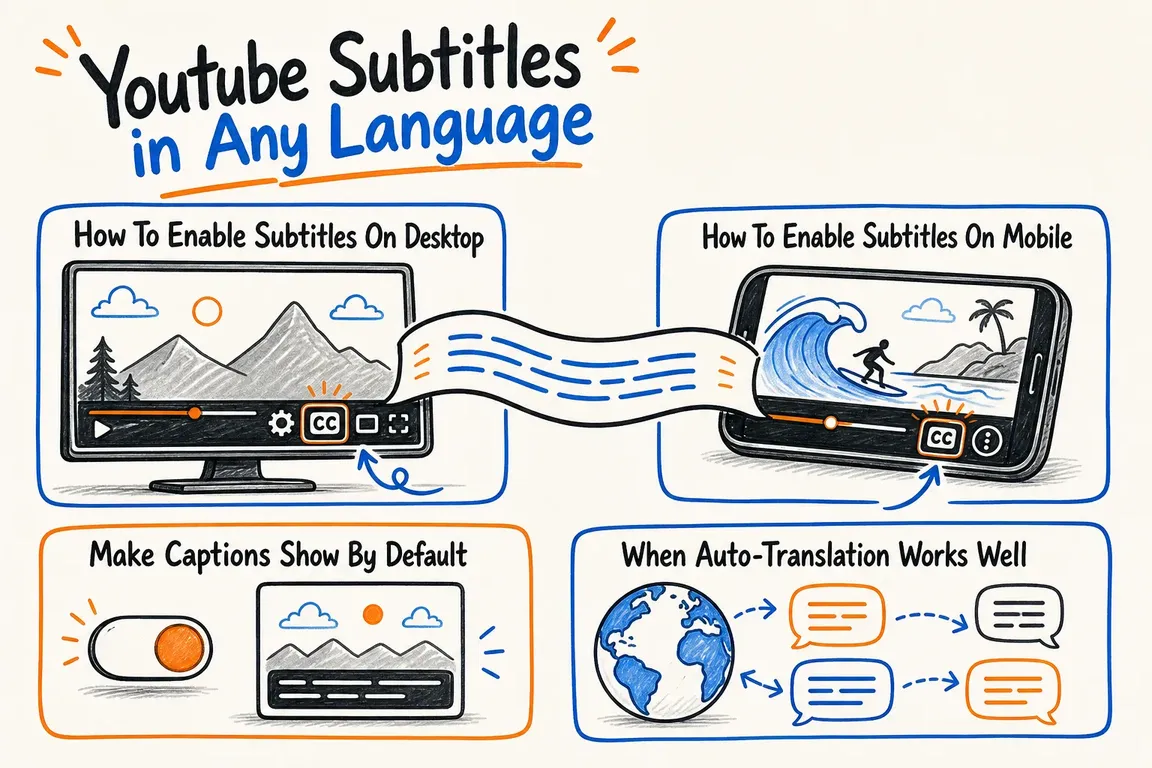
How To Enable Subtitles On Desktop
Open the YouTube video and click the CC button if captions are available. If you want another language, click the settings icon, choose Subtitles/CC, then choose Auto-translate and select the language you want.
The auto-translate option usually appears only when YouTube has captions to translate. If a video has no uploaded captions and no automatic captions, there may be nothing for YouTube to translate.
How To Enable Subtitles On Mobile
On Android or iPhone, tap the video player, open the captions or settings menu, and choose the available subtitle language. If auto-translation is available, select it from the subtitle menu and choose your preferred language.
The exact menu changes a little between YouTube app versions, but the logic is the same: first turn captions on, then choose a language or auto-translate if YouTube offers it.
No CC button?
If there is no CC button, the video has no captions at all. The creator did not upload any and YouTube did not generate automatic ones. That happens with music, very new uploads, bad audio and live streams in languages other than English. On desktop, the c key turns captions on and off, and + and - change the text size. Under Subtitles/CC and Options you can change font, colour and background.
Which languages work
YouTube generates automatic captions for spoken audio in more than 100 languages, Danish and Norwegian included. The full list is in YouTube's help article Use automatic captioning. Auto-translate is a separate step: once a video has captions in one language, YouTube can translate them into many others. That is how I watch a Norwegian video with English subtitles even though nobody wrote English ones.
Make Captions Show By Default
On desktop, open YouTube settings, go to Playback and performance, and enable Always show captions. You can also enable automatic captions when they are available.
This is useful if you often watch technical videos, interviews, lectures, or videos in a second language. It saves a few clicks and makes YouTube more comfortable to use.
When Auto-Translation Works Well
Auto-translation works best when the original audio is clear and the automatic captions are already accurate. Simple tutorials, product demonstrations, lectures, and slow speech usually work better than comedy, slang, music, overlapping speakers, or noisy recordings.
If the original automatic captions are wrong, the translation will also be wrong. Translation does not repair bad transcription.
Advice For Creators
If a video matters for search, education, support, or international viewers, upload a clean caption file instead of relying only on automatic captions. Correct names, technical terms, product names, and links are especially important.
For business videos, captions are not only an accessibility feature. They also make the content easier to scan, quote, translate, and understand in quiet workplaces or on mobile connections.
Short Version
Use the CC button first. If your language is not available, look for auto-translate under subtitle settings. If you publish videos yourself, do not assume automatic captions are good enough: check them, clean them up, and give YouTube a better source to translate from.