By Greg Nowak. Last updated 2026-10-27.
Getting activities off a Garmin Forerunner 910XT on Linux takes more work than it should. The useful approach is to split the job into two stages: download the activity files from the watch, then import those files into Garmin Connect through your browser.
The original version of this article documented a working setup at the time. Its installation commands have aged. The community tool antfs-cli still lists the 910XT as supported, but its dependencies need attention on a current Linux machine. Establish that the software starts correctly before spending an afternoon changing watch settings.
Understand the transfer before installing anything
The 910XT sends its activity history through a USB ANT stick. Garmin’s owner’s manual describes this wireless transfer and recommends keeping the watch within three metres of the computer. Start with a charged watch, a saved activity, and a compatible ANT receiver.
This gives you three separate places to check when something fails:
| Stage | What success looks like | What to investigate |
|---|---|---|
| Software startup | The command displays its help without a traceback. | Python environment and dependency compatibility. |
| Watch transfer | Pairing completes and activity files appear locally. | USB permissions, receiver access, watch settings, and range. |
| Garmin Connect import | The selected activity appears in your account. | The chosen file and any import error. |
Check the Python compatibility problem first
There is a concrete mismatch in the upstream projects checked for this update. The antfs-cli source imports modules from ant.fs, while current OpenANT packaging includes the openant namespace. That makes a fresh installation vulnerable to an import failure before it reaches the watch.
I would therefore treat the following as an isolated evaluation of the upstream code. It replaces the original system-wide Python installation approach, but resolving the namespace mismatch may still require a compatible build or a reviewed code change.
With Git, Python 3, and your distribution’s virtual-environment support installed:
python3 -m venv ~/.venvs/antfs
source ~/.venvs/antfs/bin/activate
git clone https://github.com/Tigge/antfs-cli.git
cd antfs-cli
python -m pip install .
antfs-cli --help
The Python Packaging User Guide recommends virtual environments for third-party packages. This keeps the experiment separate from the Python packages managed by Linux.
If you see ModuleNotFoundError: No module named 'ant', stop at this stage. That error concerns the software dependency; pairing the watch again will not fix it. For occasional recovery, weigh the effort of maintaining this tool against using another computer with a working Garmin transfer setup.
Pair the watch and download activities
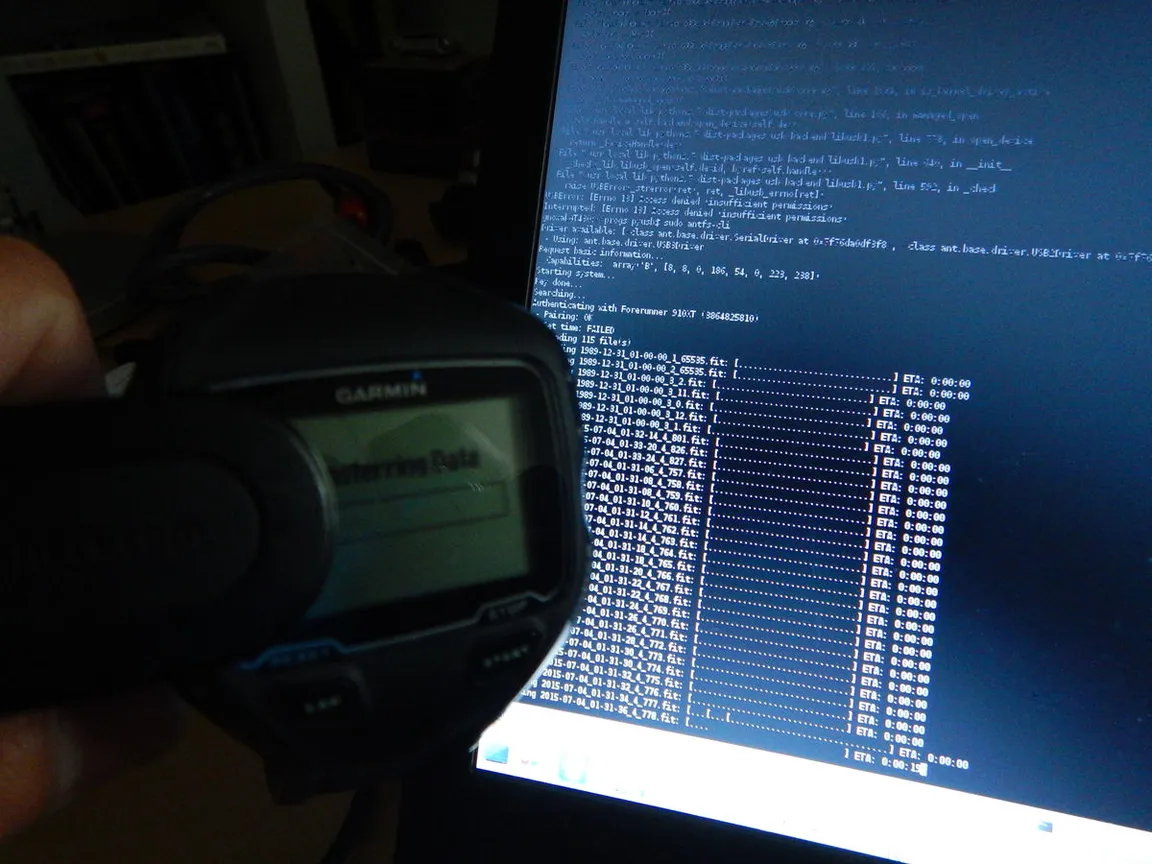
Once you have a compatible installation, plug in the ANT stick, enable pairing under MODE → Settings → System → Data Transfer, and run:
antfs-cliAccept the pairing request on the watch and allow the download to finish. Run the transfer as your normal user so its files belong to your account.
If USB access is denied, check the receiver permissions. OpenANT documents a Linux udev rule installer; with the virtual environment above, its command is:
sudo "$HOME/.venvs/antfs/bin/python" -m openant.udev_rulesThis applies to an installed OpenANT version that provides that module. Reconnect the receiver afterward. If the command starts successfully but the transfer stalls, collect diagnostic output:
antfs-cli --debugKeep those logs private when sharing troubleshooting details until you have checked their contents.
Find the FIT files and keep a copy
The default activity location follows this pattern:
~/.config/antfs-cli/DEVICE_ID/activities/DEVICE_ID represents your watch’s identifier. If XDG_CONFIG_HOME is set, the base directory changes accordingly. Locate the downloaded files with:
find "${XDG_CONFIG_HOME:-$HOME/.config}/antfs-cli" -type f -iname '*.fit'Copy the activity files somewhere safe before changing the setup or deleting watch history. If older saved activities are missing, Garmin documents MODE → History → Transfer All for resending history.
Import an activity into Garmin Connect
Garmin’s manual upload instructions describe the browser import process. Its device-file retrieval steps target Windows and Mac; for this Linux workflow, use the FIT file already extracted locally.
- Sign in to Garmin Connect in your browser.
- Select the upload cloud icon, then Import Data.
- Browse to a downloaded activity FIT file and select Import.
- Check the activity’s date, duration, distance, and recorded details before importing the rest.
The --upload option in antfs-cli concerns transfers back to the device. The project separately documents Garmin Connect upload scripts, but their presence does not establish compatibility with current authentication. My recommendation is to prove manual import works before considering automation.
Make the working process easy to repeat
Once a transfer succeeds, record the Python version, package versions, receiver model, file location, and exact commands. A short handover note matters when another person has to run the process later.
That applies equally to a watch, an agency reporting script, or an awkward business integration. If your team has a recurring transfer that depends on one person remembering the steps, talk to Greg about making it reliable and easier to maintain.
Related on GrN.dk
- Locked Out of Your Apple Developer Account? Fix Access Before October 1
- NGINX 1.30 and upstream connection reuse: what to check before upgrading
- Nginx 1.30 Changed Upstream Connections: What to Test Before You Upgrade
Need help with this kind of work?
Talk to Greg about a recurring integration problem Get in touch with Greg.