By Greg Nowak. Updated 29 October 2026.
A screenshot should be the easy part of publishing a support article. When editors have to save it locally, navigate an upload dialog, and find their place again, a small task becomes an interruption. Clipboard image pasting in Drupal can remove that friction.
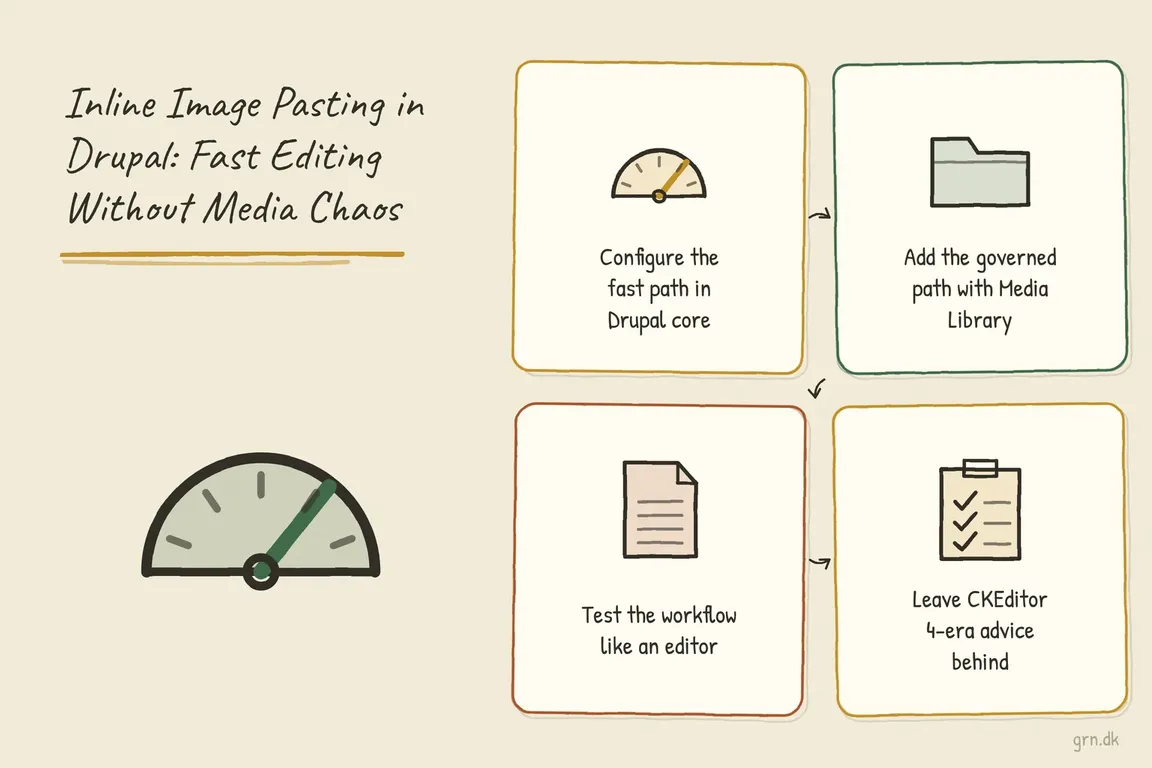
The decision deserves more thought than simply enabling uploads. Who will replace the screenshot when the interface changes? Will another team need the same image? My starting rule is straightforward: paste images that belong to one page; use Media Library for assets that need reuse or shared maintenance. Here is how to put that into practice with CKEditor 5.
Choose the image’s home before configuring the editor
In Drupal’s standard inline upload workflow, an image is a managed file referenced from the text. It does not automatically become a Media entity with a library record and separate asset metadata. Custom integrations can change that behaviour, so check what your site actually does.
For a business owner or operations lead, the useful distinction is maintenance: can the page owner look after this image, or does it need an owner beyond that page?
| Image and purpose | Recommended route | Maintenance rule |
|---|---|---|
| Screenshot explaining one support step | Inline paste | Review it whenever the instructions change |
| Internal handover or QA evidence | Inline paste, after checking access | Remove sensitive details before uploading |
| Product, campaign, or staff photograph | Media Library | Assign an asset owner and record required metadata |
| Diagram used on several pages | Media Library | Check affected pages before replacing it |
| Page-specific screenshot that becomes reusable | Add it to Media Library | Replace existing inline instances with media embeds |
Configure the text format your editors actually use
Work on staging first. Open /admin/config/content/formats and edit the format used by the relevant content field. Testing an administrator’s Full HTML format will not establish whether an ordinary editor can complete the task.
- Check the editor and toolbar. Select CKEditor 5 and add its image upload control to the active toolbar.
- Enable image uploads. Set an upload directory. Choose the file storage scheme where the site offers a choice.
- Set upload limits. Choose maximum file size and dimensions using representative screenshots.
- Check role access. Give the intended editors access to this text format, keeping its HTML capabilities appropriate to their work.
Drupal’s image upload settings confirm that an empty file-size limit falls back to PHP’s maximum upload size. Images exceeding the configured dimensions are scaled down. Check the result carefully: a smaller screenshot is little use if readers cannot distinguish its interface labels.
Keep Track images uploaded via a Text Editor enabled. Drupal’s file-reference filter resolves referenced file URLs and supplies dimensions. Preserve the file-reference attributes when changing HTML filtering; loosening the entire format is a poor troubleshooting shortcut.
Make Media Library an equally clear option
For reusable assets, enable the core Media and Media Library modules. Add the Media Library button to the same text format and enable Embed media. Drupal’s CKEditor 5 media embedding guide recommends placing that filter last, after filters handling allowed HTML, alignment, and captions.
Limit the available media types and display options to useful choices. Verify editors’ permissions to view and create the relevant media. Preview the published page too: the guide notes that the editor preview may differ from the final display.
A library still needs naming conventions, ownership, and any required approval process. Before replacing a shared image, check that its new version makes sense wherever it appears.
Test one complete publishing task
Give an editor a representative page and their normal account. Agree that the workflow is ready only when they can complete these checks:
- Paste a fresh screenshot, then separately try dragging a local file and selecting one through the upload button.
- Wait for upload completion, add meaningful alternative text, and save.
- View and reopen the page; confirm the image remains present and editable.
- Check captions, alignment, mobile readability, and delivered file size.
- Insert a Media Library item and inspect its published appearance.
- Try an oversized image and check that the error explains what to change.
For restricted material, open the image URL directly as an intended reader and as someone without access. Include customer names, email addresses, and account details in the screenshot review. Settle storage and access questions before editors start uploading real evidence.
When pasting fails, isolate the failing step
CKEditor’s upload documentation describes clipboard paste, drag-and-drop, and file selection as separate entry routes that depend on an upload integration. Testing them separately helps narrow the investigation.
If file selection works but pasting fails, try a fresh screenshot rather than material copied from a website or document. If every upload route fails, ask the developer to inspect the upload response, permissions, storage access, and limits. If the image disappears after saving, inspect the saved markup and filtering.
Older tutorials may recommend ckeditor_uploadimage. Its project page places it in the CKEditor 4 ecosystem and currently lists no supported stable releases. Start with Drupal’s CKEditor 5 integration for this workflow.
Leave the team with a small, usable handover
Document which images to paste, which belong in Media Library, and who updates each kind. Review screenshots alongside the surrounding instructions. A file can load correctly while showing an obsolete process.
If this is slowing your publishing team down, Greg can help define the editorial rules, brief the implementation, and coordinate acceptance testing. Bring one troublesome publishing example to start the conversation. Explore working with Greg as your digital project manager.
Related on GrN.dk
- Pasting Images into Drupal: A Practical CKEditor 5 Setup
- Before AI images reach clients, audit your media library
- Google Review Link Generators: What Small Teams Actually Need
Need help with this kind of work?
Plan a smoother Drupal publishing workflow with Greg Get in touch with Greg.