By Greg Nowak. Last updated 2026-10-02.
Finding BAHTTEXT() in Excel is a small surprise: enter a number and Excel writes it out in Thai. If you prepare invoices, payment forms, or approval documents in English, the obvious next question is whether the same trick works for English. It does not. Here is what BAHTTEXT does, how to approach English number words, and what to check before a workbook becomes part of a team’s process.
What BAHTTEXT actually does
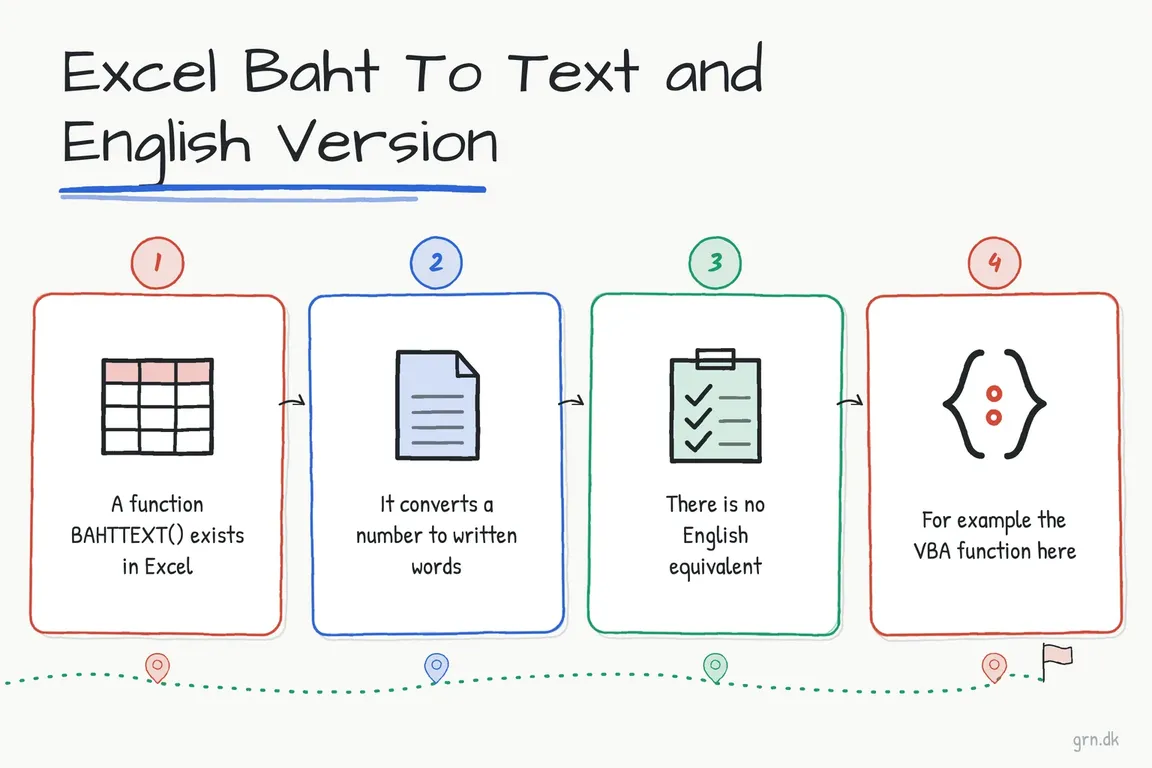
Microsoft’s BAHTTEXT documentation defines the function as converting a number to Thai text and adding a Baht suffix. Put 1234 in cell A2 and enter =BAHTTEXT(A2) in another cell. Excel returns Thai wording for the amount. You can also pass a number or a formula directly, but a cell reference is easier to audit when the amount may change.
The output is wording for a specific language and currency convention, not a general number-to-words engine. Changing a cell’s currency format will not turn the result into English. Keep the numeric amount in its own cell for calculations and use the text result only where a document needs words.
Why an English version needs a different approach
Excel has no matching built-in English SPELLNUMBER() function. The familiar TEXT() function can display 1234.5 as a formatted number, but it cannot produce “one thousand two hundred thirty-four.” Microsoft’s TEXT guidance makes that distinction and points readers toward VBA for English number words.
Before adding code, decide how often the wording is needed and where people will open the file. A one-off amount on a document may be quicker to write and check manually. A recurring form needs a repeatable conversion method, an owner, and a few agreed wording rules.
| Situation | Practical choice | Check before using it |
|---|---|---|
| Thai baht wording in a worksheet | =BAHTTEXT(A2) |
Confirm the output fits the document’s language and currency. |
| Occasional English amount | Write the words manually from the numeric total. | Have a second person compare the words with the amount. |
| Recurring English forms in desktop Excel | Use a reviewed VBA custom function, often named SpellNumber. |
Test currency wording, decimals, and the team’s macro settings. |
| Workbook mainly used in a browser | Choose a workflow that does not depend on VBA running there. | Excel for the web cannot run VBA macros. |
Setting up English number words in desktop Excel
A VBA custom function is the conventional route when an English amount must update with a cell. In desktop Excel, open the Visual Basic Editor, insert a module, and add a reviewed number-to-words function. On Windows, Alt+F11 opens the editor; the menu path is Insert > Module. Microsoft explains how custom functions work and how to call one from a worksheet.
If the function is named SpellNumber and the amount is in A2, enter =SpellNumber(A2) in the output cell. The name must match the function you installed. SpellNumber is a common name used by examples, not a function included with Excel. A #NAME? result can mean the function is absent, its workbook is closed, or its name was typed differently.
Save a workbook that contains VBA as an Excel Macro-Enabled Workbook (.xlsm). If your team shares a template, document where the function lives and who maintains it. Review code before enabling it, particularly when it came from a downloaded workbook or a copied example. A business form should not depend on a macro that only one person understands.
Check the wording, not just the formula
Number-to-words examples often make assumptions about dollars, cents, and English style. Agree on the output your document needs before rolling one out: “one hundred dollars and five cents,” “one hundred and 05/100,” and “one hundred five” serve different purposes. A function that handles the integer correctly may still mishandle the fractional part or add the wrong currency label.
Test a small set of real-looking values: zero, one, an amount with a single cent, an amount ending in a round hundred, a large amount, and a negative or refund amount if those can occur. Compare each result with the source number. Check how the function handles values with more than two decimal places and decide whether the underlying amount should be rounded before it is converted. That decision belongs with the document owner, not inside an unexplained formula.
Make the workbook usable by the next person
Keep the calculated amount, the written amount, and any currency label clearly separated. Add a short note in the template stating which cell controls the wording and which Excel app the team should use. Excel for the web can open a workbook containing VBA, but it cannot create, run, or edit VBA macros; a browser-based approval process therefore needs a different way to produce the words.
If a payment document depends on this output every week, the useful improvement is a dependable template and review step, not merely a clever formula. If you want help turning a fragile spreadsheet into a clear process your team can maintain, get in touch with Greg.
Related on GrN.dk
- Agentic AI: What It Is, How It Works, and When to Use It
- Drupal Wiki: Build a Knowledge Base People Can Actually Use
- Locked Out of Your Apple Developer Account? Fix Access Before October 1
Need help with this kind of work?
Talk to Greg about your spreadsheet workflow Get in touch with Greg.