By Greg Nowak. Last updated 2026-09-26.
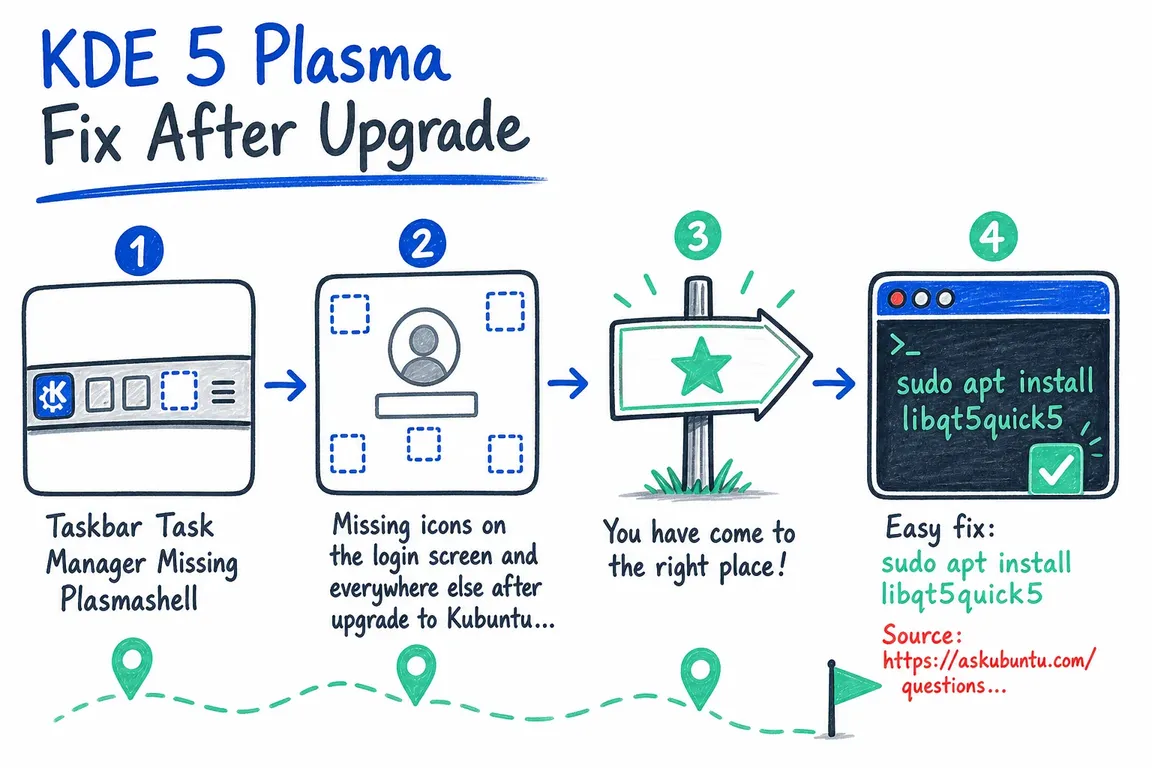
A Kubuntu upgrade can occasionally leave KDE Plasma with blank icons, a damaged panel or a missing Task Manager. The old one-line solution—installing libqt5quick5—can still be correct on a Plasma 5 system, but it should not be applied blindly. Current Kubuntu releases may use Plasma 6 and Qt 6, while the login screen and your desktop session have separate configurations.
The safest approach is to identify the affected layer, repair interrupted packages and reset personal configuration only as a last resort. That matters even more on a work machine: deleting the wrong Plasma file can turn a small visual problem into an afternoon of rebuilding shortcuts, widgets and panels.
Start by identifying the version and scope
Open Konsole, or switch to a text console with Ctrl+Alt+F3 if the desktop is unusable, and collect the basics:
plasmashell --version
lsb_release -ds
apt-cache policy plasma-workspace libqt5quick5 libqt6quick6
Then ask two practical questions. Are icons missing only after you sign in, or are they also missing on the SDDM login screen? Is the entire panel broken, or only its Task Manager widget? Those distinctions determine which configuration or package needs attention.
| Symptom | Likely layer | First action | Risk |
|---|---|---|---|
| Icons missing inside the desktop session | Icon theme, Plasma workspace or Qt runtime | Repair packages and verify the Breeze icon package | Low |
| Icons missing on the login screen | SDDM theme | Reinstall the active SDDM theme | Low |
| Only Task Manager is absent | Panel layout | Add the widget again in Edit Mode | Low |
| Panel cannot load or remains corrupted | User Plasma configuration | Back up and reset the applet configuration | High: layout is rebuilt |
Repair an incomplete upgrade first
If the failure appeared immediately after an upgrade, complete any interrupted package configuration before changing Plasma settings:
sudo dpkg --configure -a
sudo apt update
sudo apt --fix-broken install
Read APT’s proposed changes before accepting them. On an important workstation, stop if it proposes removing the desktop, display manager or a large set of packages. Mixed repositories, held packages or an interrupted distribution upgrade need investigation rather than repeated forced commands.
You can then restore the core workspace package:
sudo apt install --reinstall plasma-workspaceIf this is a Kubuntu installation whose desktop metapackage has been removed, sudo apt install kubuntu-desktop will restore its declared dependencies. Be aware that it may also reinstall standard Kubuntu applications previously removed intentionally.
When does libqt5quick5 remain the right fix?
libqt5quick5 is the Qt 5 Quick runtime. It remains available for supported Ubuntu installations that ship Plasma 5, so the original repair is still useful when plasmashell --version reports Plasma 5 and apt-cache policy libqt5quick5 shows a valid candidate:
sudo apt install libqt5quick5Do not use that command as a generic Plasma 6 repair. Plasma 6 uses Qt 6, and Ubuntu’s Plasma 6 workspace already depends on libqt6quick6. Reinstalling plasma-workspace is preferable because APT can resolve the appropriate runtime and related dependencies together.
Repair missing icons without resetting the desktop
First open System Settings and select the default Breeze theme under Appearance and Icons. If Breeze itself is incomplete, identify the package that owns its index file:
dpkg -S /usr/share/icons/breeze/index.themeReinstall the package name shown on the left of the result. Depending on the Kubuntu release, that may be breeze-icon-theme or its KDE Frameworks 6 replacement. This ownership check is more reliable than copying a package name from instructions written for another release.
When the problem also appears before login, treat SDDM separately:
sudo apt install --reinstall sddm-theme-breezeRestart the computer after repairing login-screen packages. Restarting only your Plasma session does not reload SDDM.
Restart Plasma before resetting its configuration
After a package or theme repair, press Alt+Space and run:
plasmashell --replaceThis is KDE’s documented way to reload the shell. If only the Task Manager disappeared, right-click the desktop or panel, enter Edit Mode and add the Icons-only Task Manager or Task Manager widget again. That preserves the rest of the layout.
Reset a broken panel safely
The file $HOME/.config/plasma-org.kde.plasma.desktop-appletsrc stores panels, widgets and desktop containments. The path in the original note—~/home/USER/...—was incorrect. More importantly, do not delete this file without a recoverable copy.
mkdir -p "$HOME/plasma-recovery"
cp -a "$HOME/.config/plasma-org.kde.plasma.desktop-appletsrc" \
  "$HOME/plasma-recovery/appletsrc-$(date +%F-%H%M%S)"
mv "$HOME/.config/plasma-org.kde.plasma.desktop-appletsrc" \
  "$HOME/.config/plasma-org.kde.plasma.desktop-appletsrc.broken-$(date +%F-%H%M%S)"
Log out and back in so Plasma creates a fresh layout. This resets panels and widgets, not your documents, but it should remain the last step. Keeping both copies makes it possible to compare or restore the previous configuration.
Treat repeated failures as an upgrade-process problem
For a business laptop or a small fleet, record the release, Plasma version, affected packages and exact APT output. Test distribution upgrades on one representative machine, confirm that third-party repositories support the target release and keep a rollback path. Repeated manual desktop resets usually indicate that the upgrade process—not the individual widget—needs attention.
If a Linux upgrade has moved beyond a quick workstation repair and is affecting delivery or staff time, I can help turn the symptoms into a contained recovery plan and a safer maintenance process.
Related on GrN.dk
- Keyboard Mapping in Kubuntu 20.04: Fix Missing Symbols and Broken Keys
- Drupal Automatic Updates After the Legacy API Shutdown: A Practical Fix Plan
- How to Flush the DNS Cache on Ubuntu—and Verify the Fix
Need help with this kind of work?
Discuss your Linux recovery plan Get in touch with Greg.